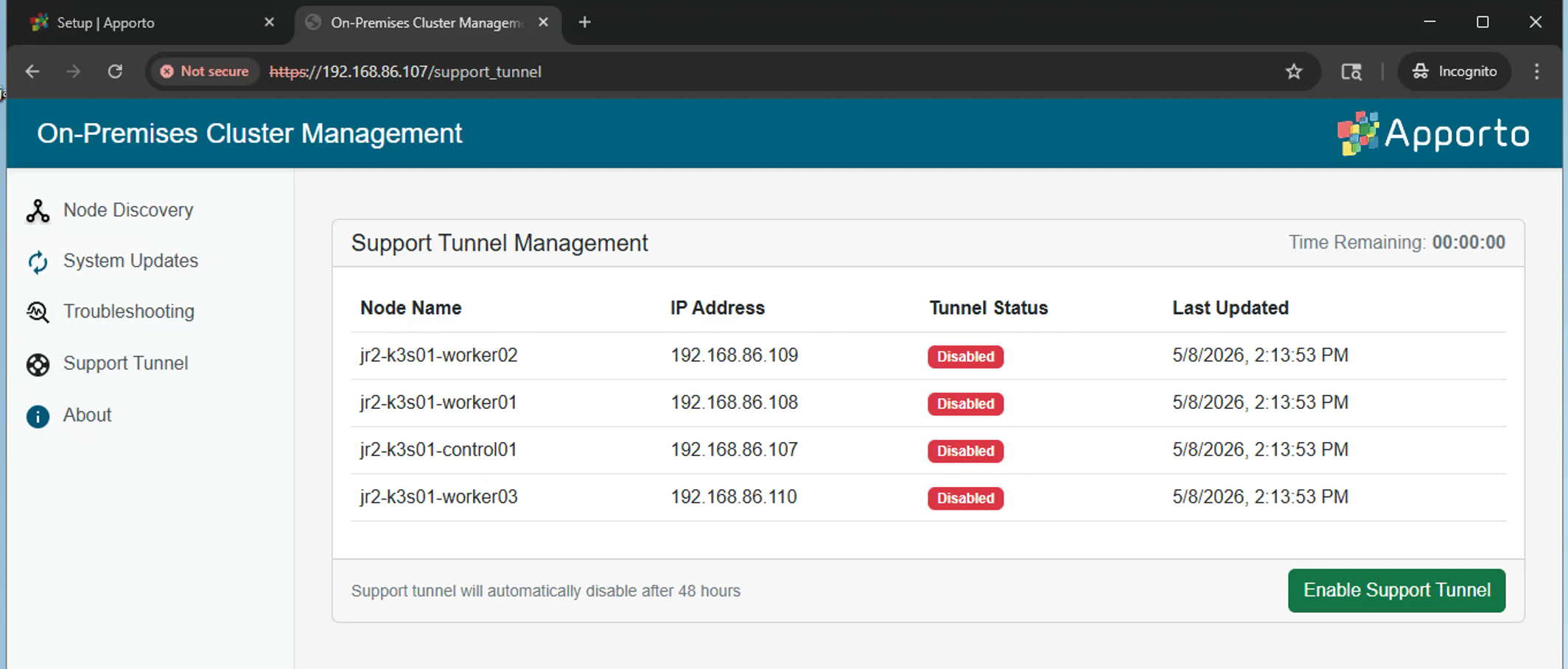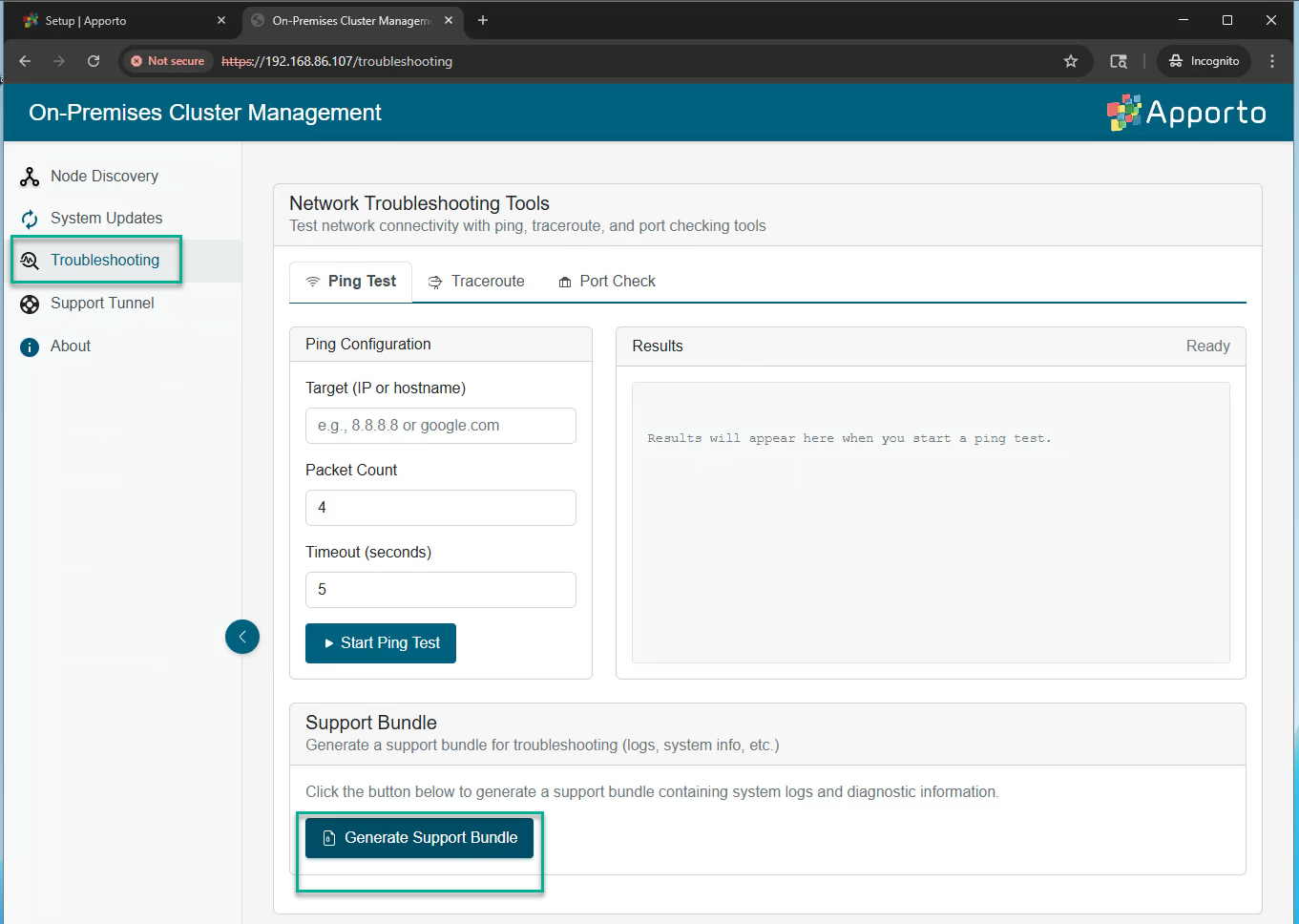

Check list - .OVA Cluster Node Install
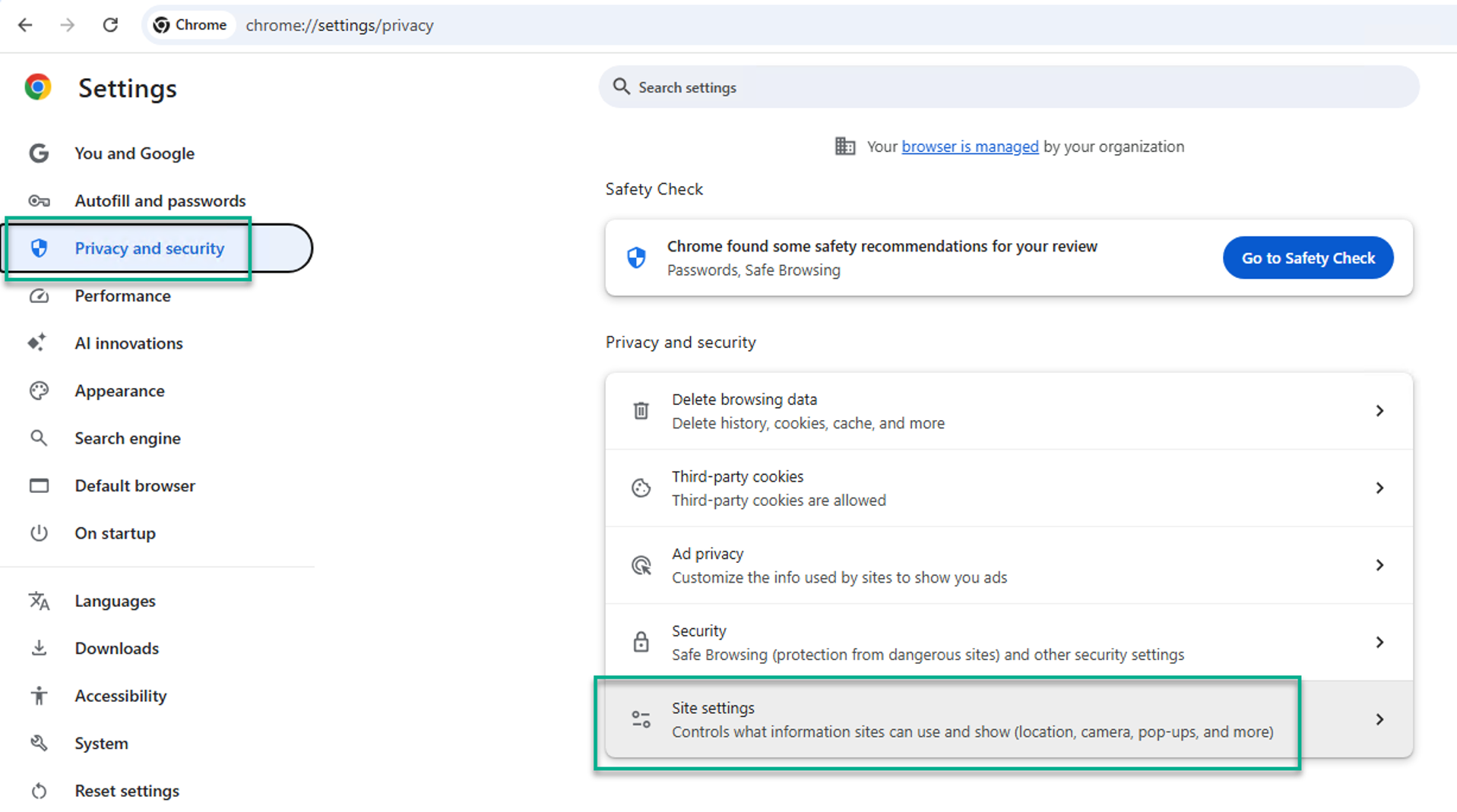
Step 1-Before performing the .OVA Cluster Node installation, ensure your Browser is Allowing Pop-Ups.
The Example here will be for Chrome:
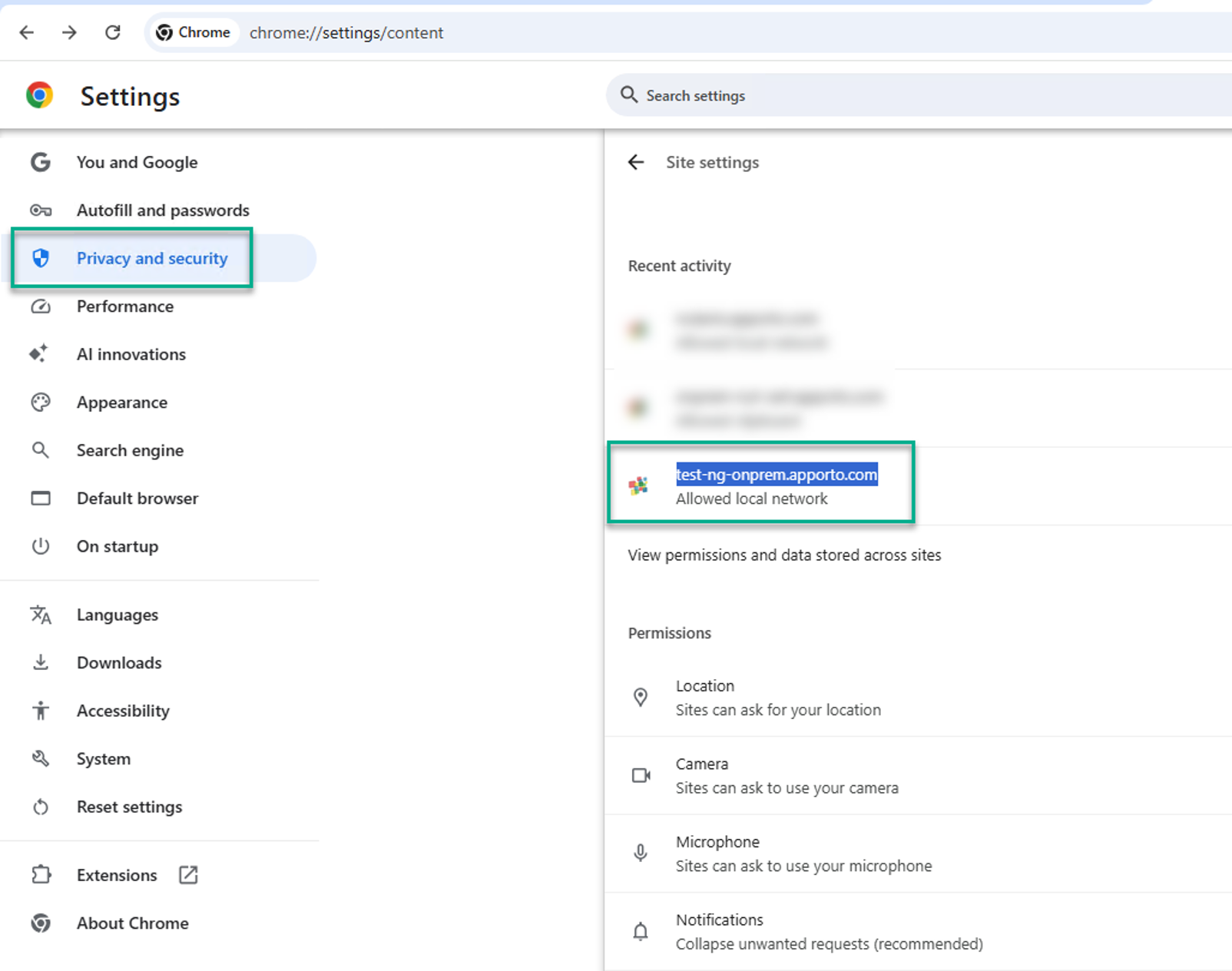
Add your Portal Name to the Allowed List:
Step 2-Now from the Control\Manager Node, Troubleshooting tab we will Test Port connections to our typical Egress Required FQDN URLs.
Our main Egress Ports around the .OVA Cluster Nodes are 443 and 30443.
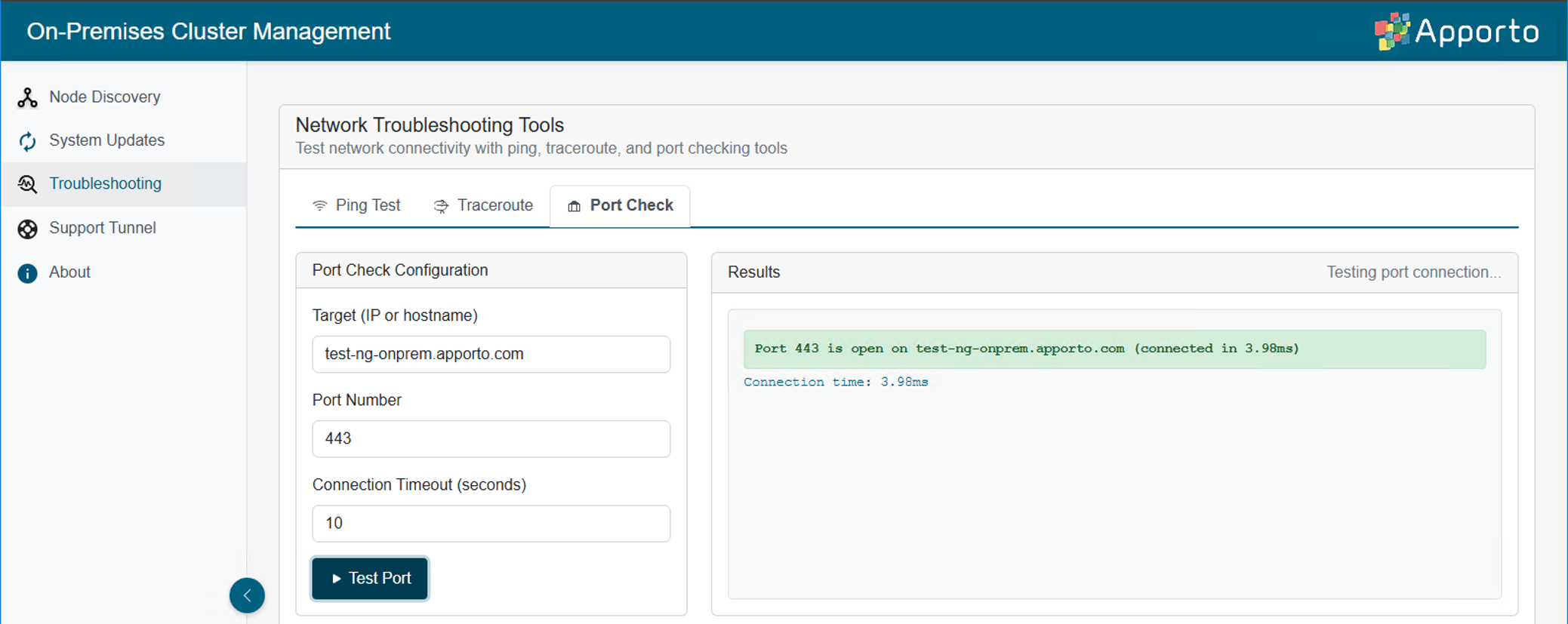
It’s suggested to check all of the below FQDN URLs on port 443 to ensure they are Reachable from our Nodes.
Make sure you also confirm your specific Portal\Tenant Name is reachable:
|
443 |
Pass\Fail? |
|
|
*.apporto.com |
443 |
Pass\Fail? |
NA\AMER:
|
443 |
Pass\Fail? |
? |
|
|
443 |
Pass\Fail? |
? |
|
|
443 |
Pass\Fail? |
? |
|
|
443 |
Pass\Fail? |
? |
|
443 |
Pass\Fail? |
? |
|
|
443 |
Pass\Fail? |
? |
|
|
443 |
Pass\Fail? |
? |
EU\EMEA: (If your portal\Tenant was set up in EU\EMEA test the following)
|
443 |
Not Online by Apporto yet |
|
443 |
Pass\Fail? |
? |
|
|
443 |
Pass\Fail? |
? |
|
|
443 |
Pass\Fail? |
? |
|
|
443 |
Pass\Fail? |
? |
Step 3-During the Create Cluster process it will first need to Auth into the Portal\Tenant, it’s suggested to be using an MSP Admin account.
Ensure that all Nodes report as “UNINITIALIZED” as this indicates a new\clean state. If they report as Ready then they have already been used.
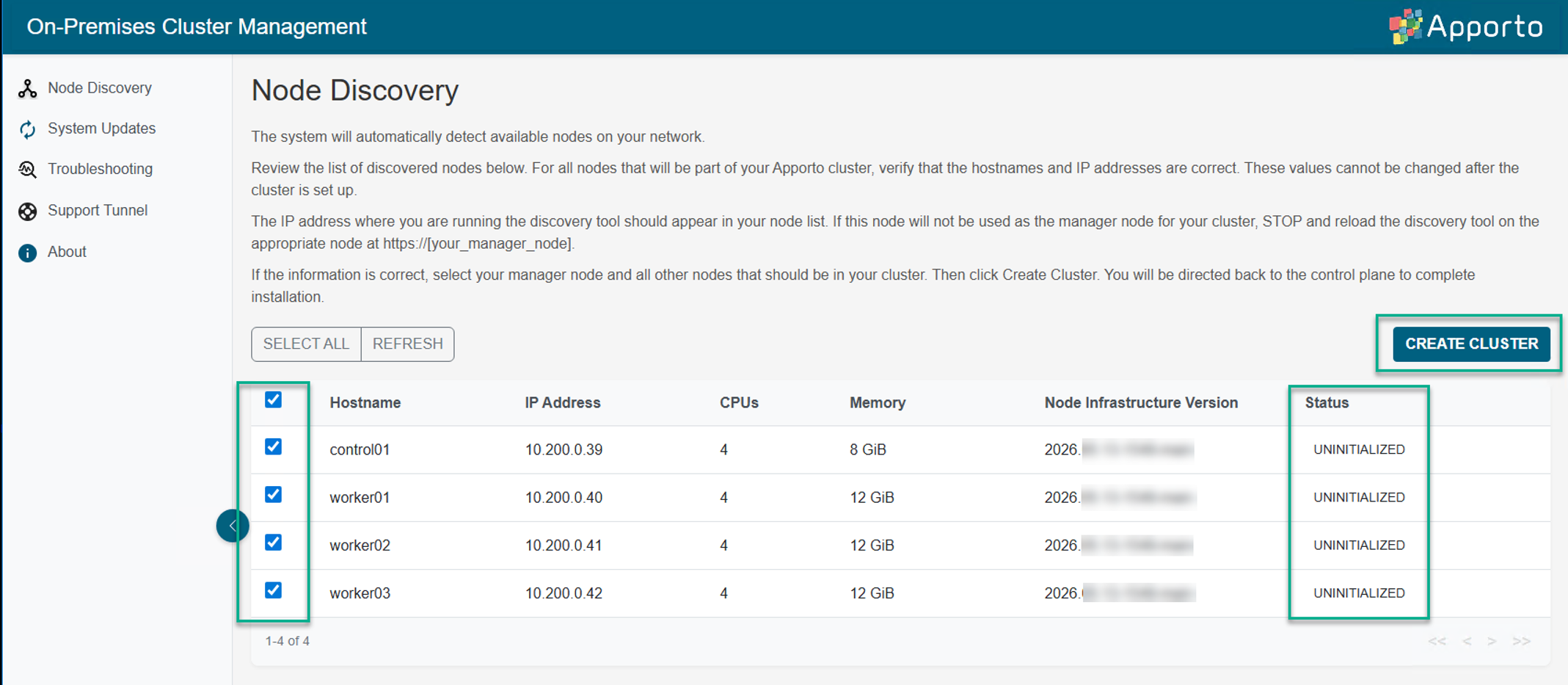
Once you select the Create Cluster option, this will then do an Auth into your Portal\Tenant being used. Ensure that you are using an MSP Admin during this process.
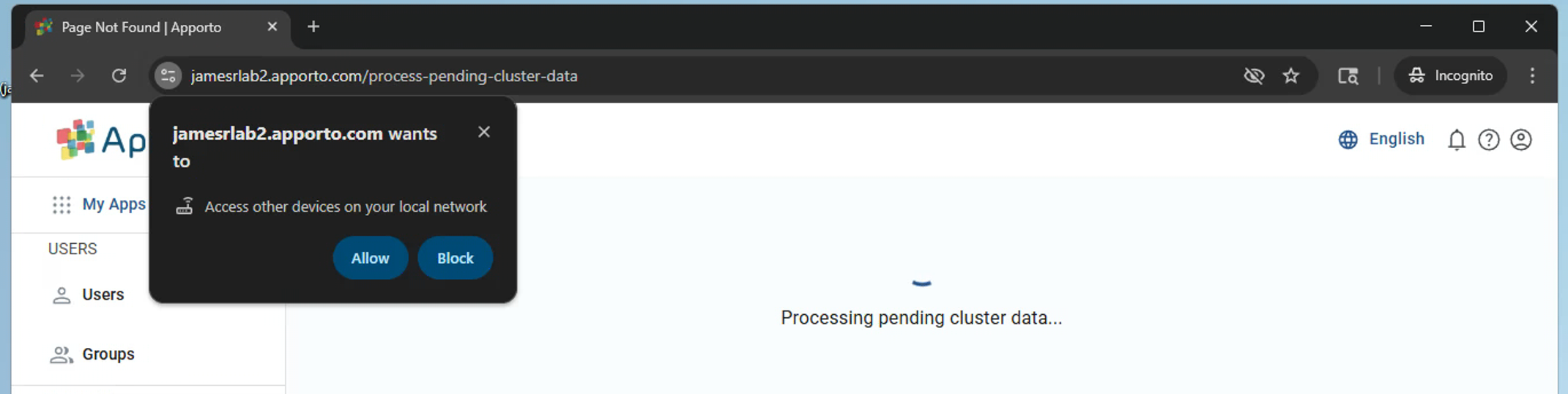
Just after the Auth, you should then see this Allow option, this is from your Browser in which you allowed Pop-Ups in Step 1.
It’s Required that you see this prompt and make sure to select Allow here.
Step 4-Proceed with the rest of the Cluster Configuration install Wizard. This process should complete in roughly 15-30Min, if it goes beyond this period then it has likely Failed.
You can use the following as a Guideline for the Cluster Install Wizard.
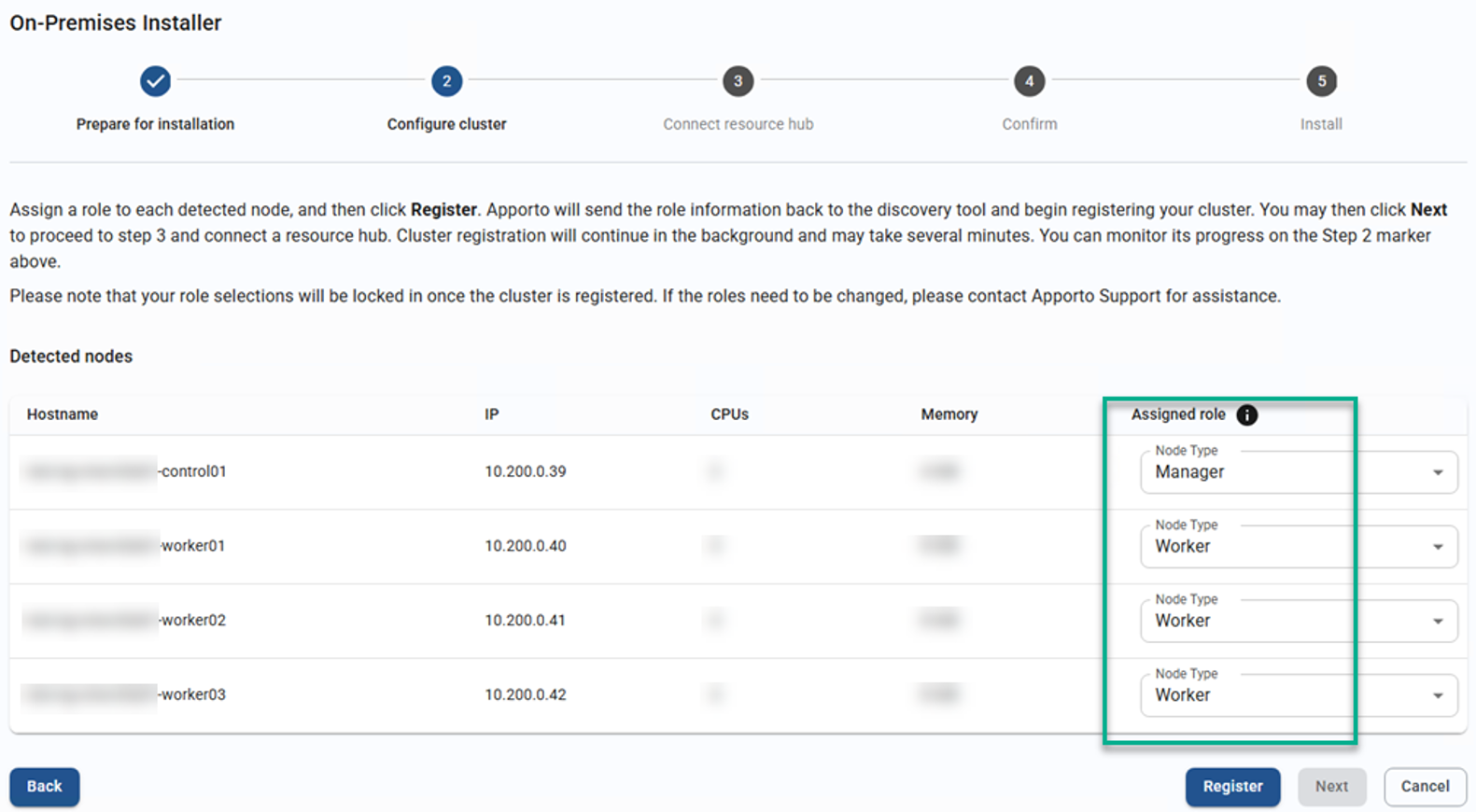
Select Register and then Next.
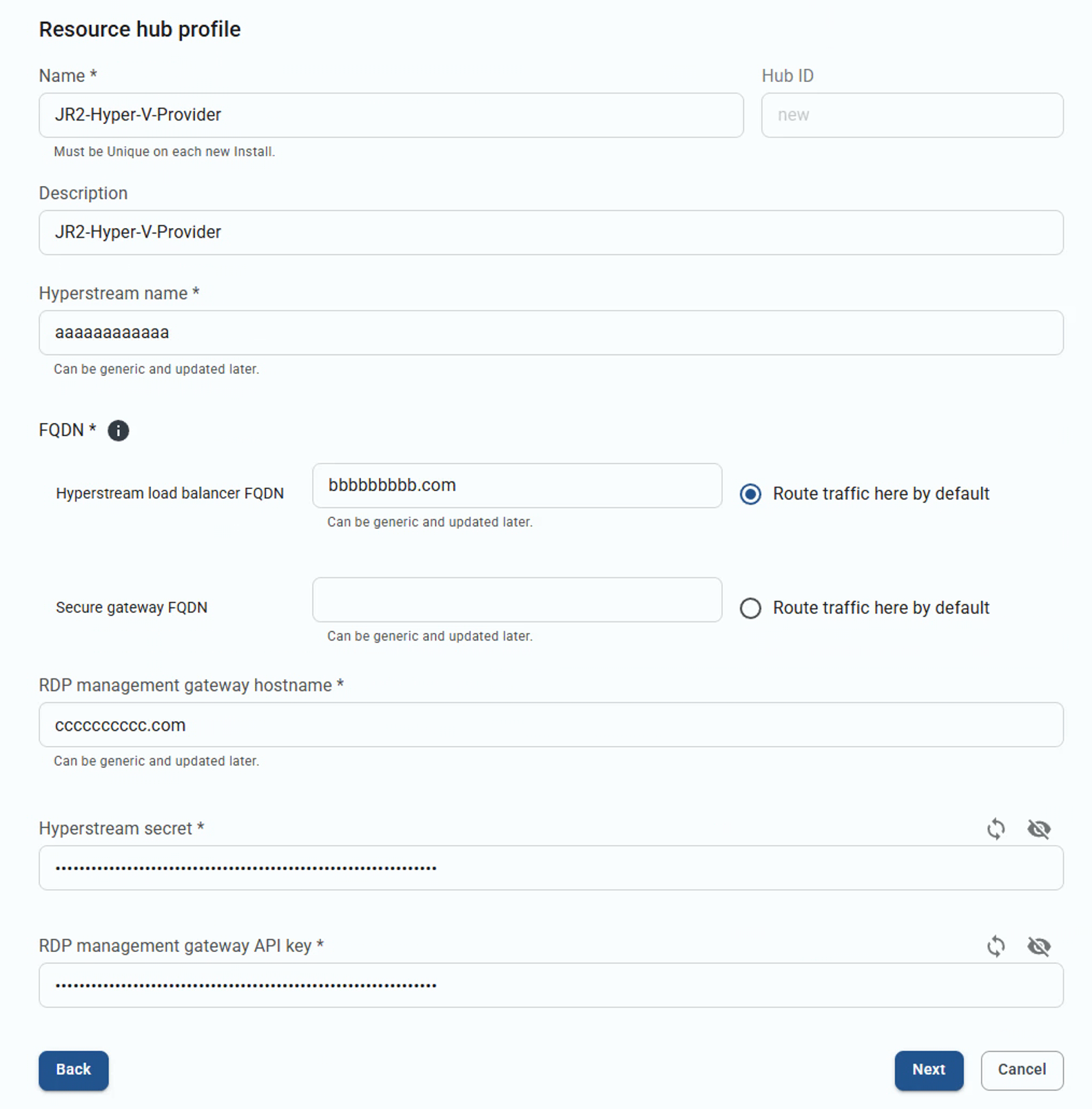
Fill in these Required Fields and do a Refresh to generate the RDP Management API Key and then select Next to proceed.
Also Ensure to select the Refresh icon to provide an updated RDP management gateway API key.
You will then be presented with just a Verification Info, select Finish to start the Installation process.
This process should complete in roughly between 15-30min, anything beyond that the Installation has failed.
If beyond 45min the cluster install has Failed, please open a Support Ticket and go back to the following areas to Enable the Support Tunnel and Generate the Support Bundle and provide that info
Info on the Support Ticket.