

Overview
This guide describes how to deploy a highly available HAProxy load balancer pair for on‑premises Apporto environments. The design uses Keepalived (VRRP) for VIP failover and Conntrackd for connection state synchronization, supports multiple Virtual IPs (VIPs) for distinct services (e.g., Hyperstream and RDP Management Gateway), and terminates TLS at HAProxy. Follow the steps in order to complete installation, validate services, and integrate with Apporto Resource Hubs.
Who should use this guide: Network/Systems engineers deploying an on‑prem or hybrid Apporto cluster who will front Hyperstream and RDP resources with a customer‑managed load balancer.
Prerequisites
-
Target OS: Debian 10/11 or Ubuntu 20.04/22.04 (or later)
-
Two Linux servers on the same subnet, each with a static IP (single NIC)
-
System sizing: 2 CPU, 4-6 GB RAM, 20-30 GB disk minimum
-
SSH access with sudo privileges
-
2 or more available IPs for VIPs (e.g., one for Hyperstream, one for RDP Mgmt)
-
SSL/TLS materials: certificate, intermediates, and private key for public‑facing FQDN(s)
Required information checklist
- HAProxy node static IPs (2 servers)
- Virtual IP addresses (at least 2)
- Network gateway IP
- DNS server IPs
- Backend server IPs and ports (e.g., Hyperstream service)
- SSL certificate chain and private key (PEM)
- Service domain names (FQDNs) for each VIP
- Public IP and NAT/Firewall rules (if exposing externally)
- DNS A records created (internal and/or public)
Best practice: Keep certificates per‑FQDN in /etc/haproxy/certs/ as single PEM files containing the server certificate, intermediate chain, and private key in that order.
Architecture at a glance
-
Two HAProxy nodes: both run HAProxy, Keepalived, and Conntrackd
-
VRRP advertises one or more VIPs; only the active node owns the VIPs
-
Conntrackd synchronizes connection state for fast failover (seconds)
-
HAProxy terminates TLS, performs health checks, and routes to backends
Installation and Base System Configuration
-
Provision two Linux VMs and assign unique static IPs to each.
-
Enable SSH for configuration work (disable later if required by policy).
-
Enable non‑local bind
Bashecho "net.ipv4.ip_nonlocal_bind=1" | sudo tee -a /etc/sysctl.conf sudo sysctl -p /etc/sysctl.conf # Verify returns 1: sysctl net.ipv4.ip_nonlocal_bind -
Install packages
Bashsudo apt update sudo apt install -y haproxy keepalived conntrackd
Determine the NIC used in the Linux VMs.
sudo lshw -C network
or
ip link show

Configure Conntrackd
N1-conntrackd.confN2-conntrackd.conf
N1-conntrackd.conf Edit on both nodes, adjusting peer IPs and interface names accordingly.
VM Node1: VM Node2:
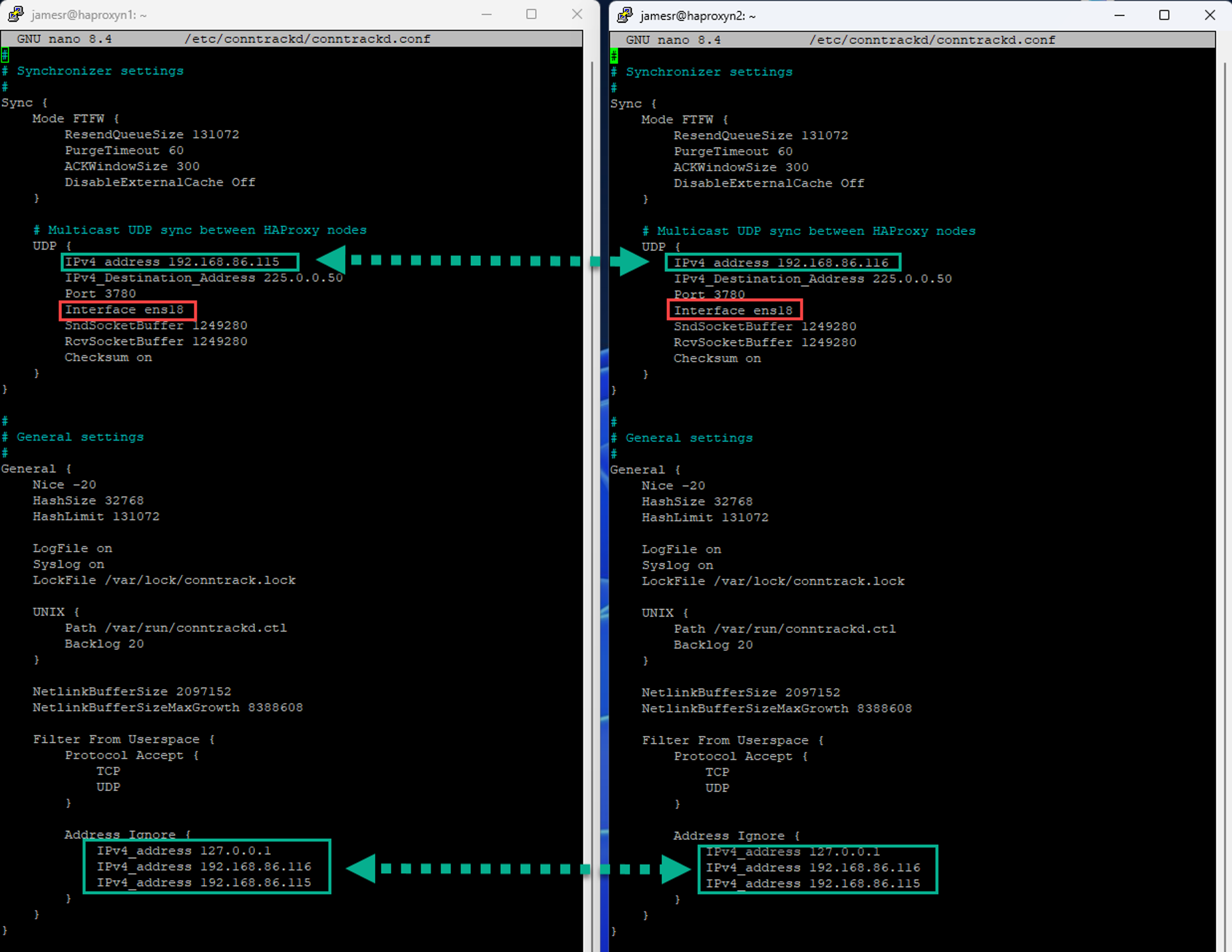
sudo nano /etc/conntrackd/conntrackd.conf
Key items to verify in your configuration:
-
Peer IPv4 addresses and multicast group are correct
-
Interface names (e.g., eth0) match your environment
-
Ignore addresses include the VIPs so they don’t interfere with sync
Restart and enable:
sudo systemctl enable --now conntrackd
Configure Keepalived (VRRP)
N2-keepalived.confN1-keepalived.conf
Create/edit on both nodes with appropriate priorities and VIPs:
VM Node1: VM Node2:
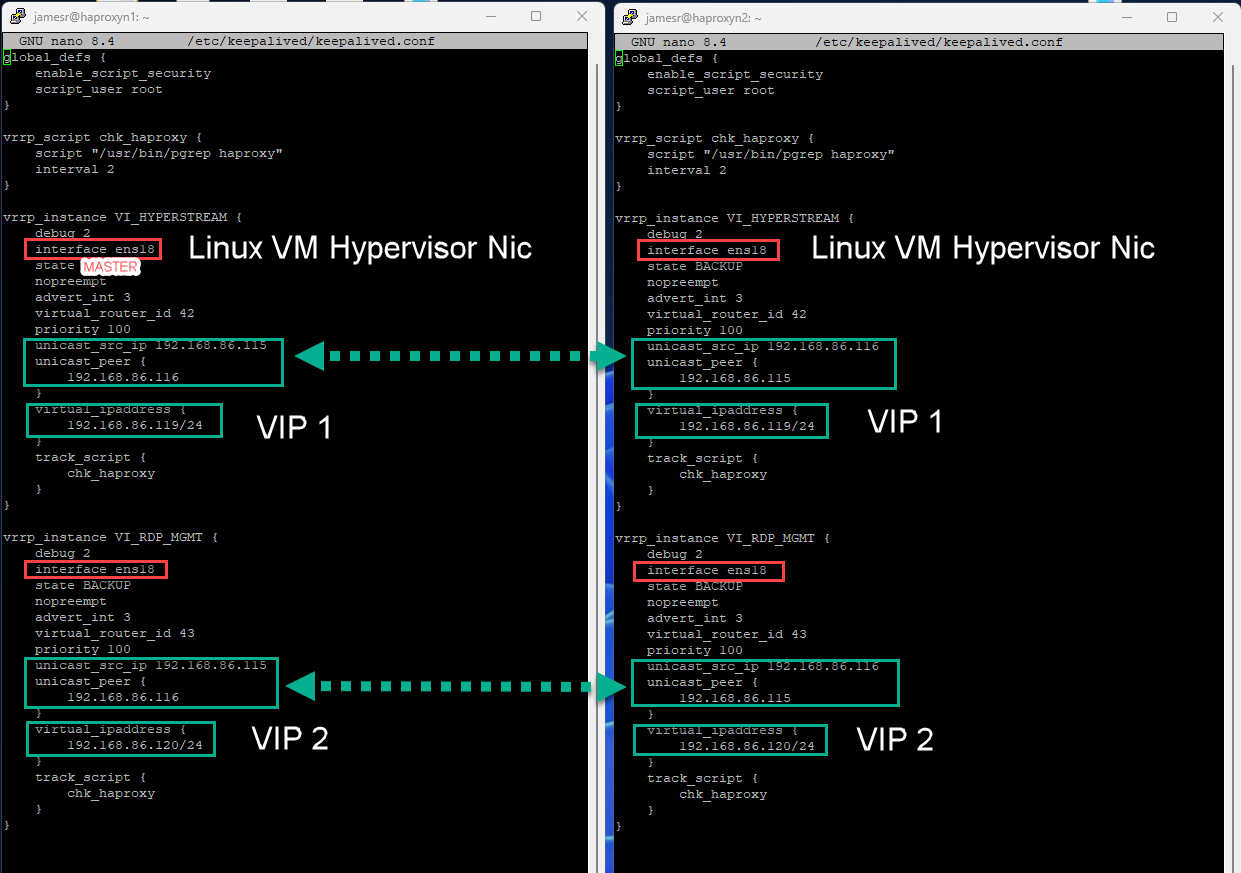
sudo nano /etc/keepalived/keepalived.conf
Guidelines:
-
Use distinct virtual_router_id values per VIP (e.g., for Hyperstream, for RDP Mgmt)
-
Configure unicast peers (recommended) or multicast depending on network policy
-
Prefer nopreempt to avoid flapping after recovery; enable preempt if your policy requires rapid failback
Start services:
sudo systemctl enable --now keepalived
Certificates (TLS)
Customers will typically buy or use a 3rd party Wildcard Certificate that will be used for the
HS-HyperStream FQDN URL. This will be used for the Public facing or External connections.
A single PEM-formatted file for SSL/TLS configuration, which must contain the private key, the server certificate, and any intermediate CA certificates.
The Cert will be placed on both Linux VMs.
-
Prepare the Certificate File
Concatenate your certificate components into one file in this specific order:
-
domain.crt or server.crt
-
intermediate.crt
-
domain.key or server.key
HAProxy expects a single PEM file per FQDN containing:
1. server.crt
2. intermediate CA chain
3. server.key
sudo mkdir -p /etc/haproxy/certs
cat server.crt intermediate.crt server.key | sudo tee /etc/haproxy/certs/hs-example-com.pem >/dev/null
sudo chmod 600 /etc/haproxy/certs/hs-example-com.pem
sudo chown root:root /etc/haproxy/certs/hs-example-com.pem
Important: The certificate’s CN/SAN must match the public FQDN clients will use (e.g., hs.example.com). Do not use an IP address as the TLS identity.
Configure HAProxy
Edit the main configuration. Both nodes share the same config.
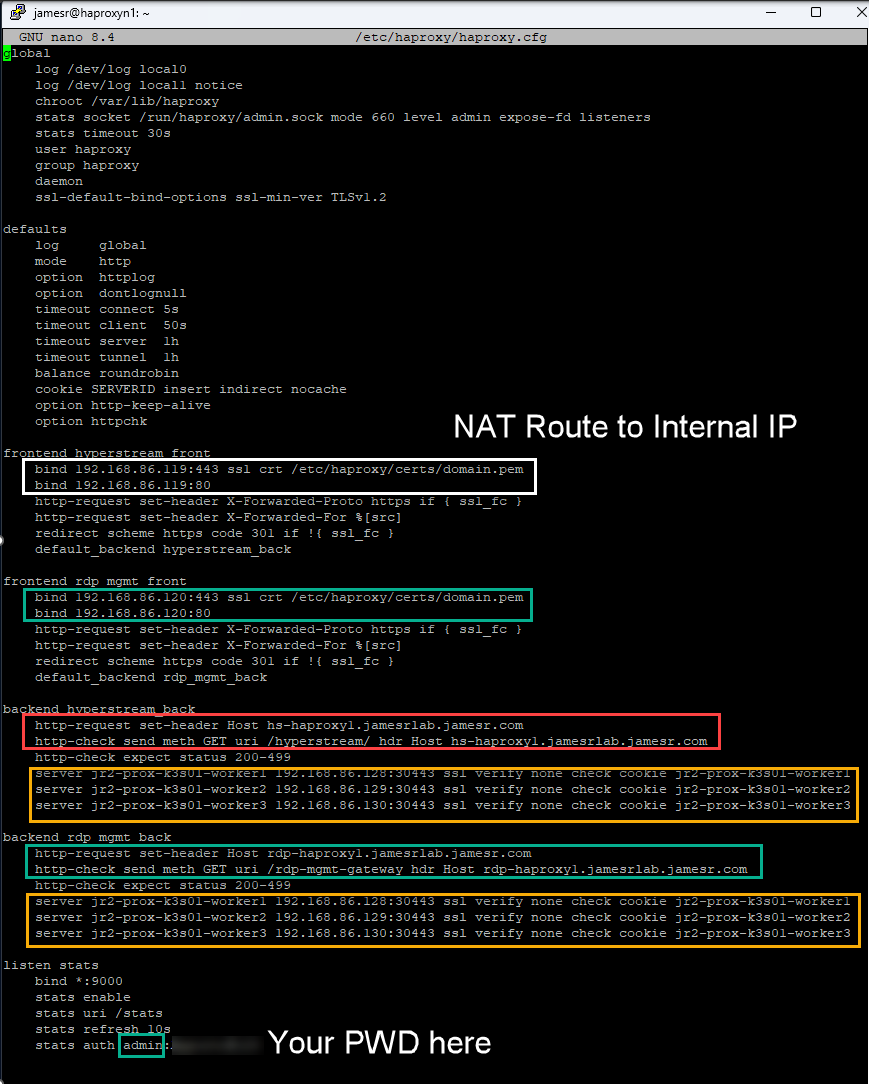
sudo nano /etc/haproxy/haproxy.cfg
General recommendations:
-
Set TLS minimum to TLS 1.2 or higher
-
Expose HAProxy stats at a restricted port (e.g., 9000) for operations
-
Configure frontends for Hyperstream and RDP Mgmt VIPs
-
Define health checks per backend; verify /health endpoints where available
Validate and reload:
sudo haproxy -c -f /etc/haproxy/haproxy.cfg
sudo systemctl enable --now haproxy
sudo systemctl restart haproxy
DNS and Networking
Public services
-
Option A: Assign a public IP directly to the VIP; create a public A record to that IP
-
-
Public A record points to the public IP on your firewall
-
NAT/port‑forward 443/80 to the private VIP
-
Internal services
-
Create internal DNS A records mapping service FQDNs (e.g., rdp.company.local) to private VIPs
# Example NAT on edge firewall (illustrative)
iptables -t nat -A PREROUTING -d 203.0.113.50 -p tcp --dport 443 -j DNAT --to-destination 192.168.1.100:443
iptables -t nat -A PREROUTING -d 203.0.113.50 -p tcp --dport 80  -j DNAT --to-destination 192.168.1.100:80
Verification
-
Services
Bashsudo systemctl status haproxy keepalived conntrackd -
VIP assignment
Baship addr show eth0 # Expect to see base IP plus VIP(s) as /32 addresses -
Connectivity
Bash# Internal VIP reachability (TLS) curl -k https://<hyperstream_vip>/ # Public FQDN (if configured) curl -I https://hs.example.com -
HAProxy stats UI (The Password for connection was listed at the bottom of the haproxy.cfg file)
http://<node-ip>:9000/stats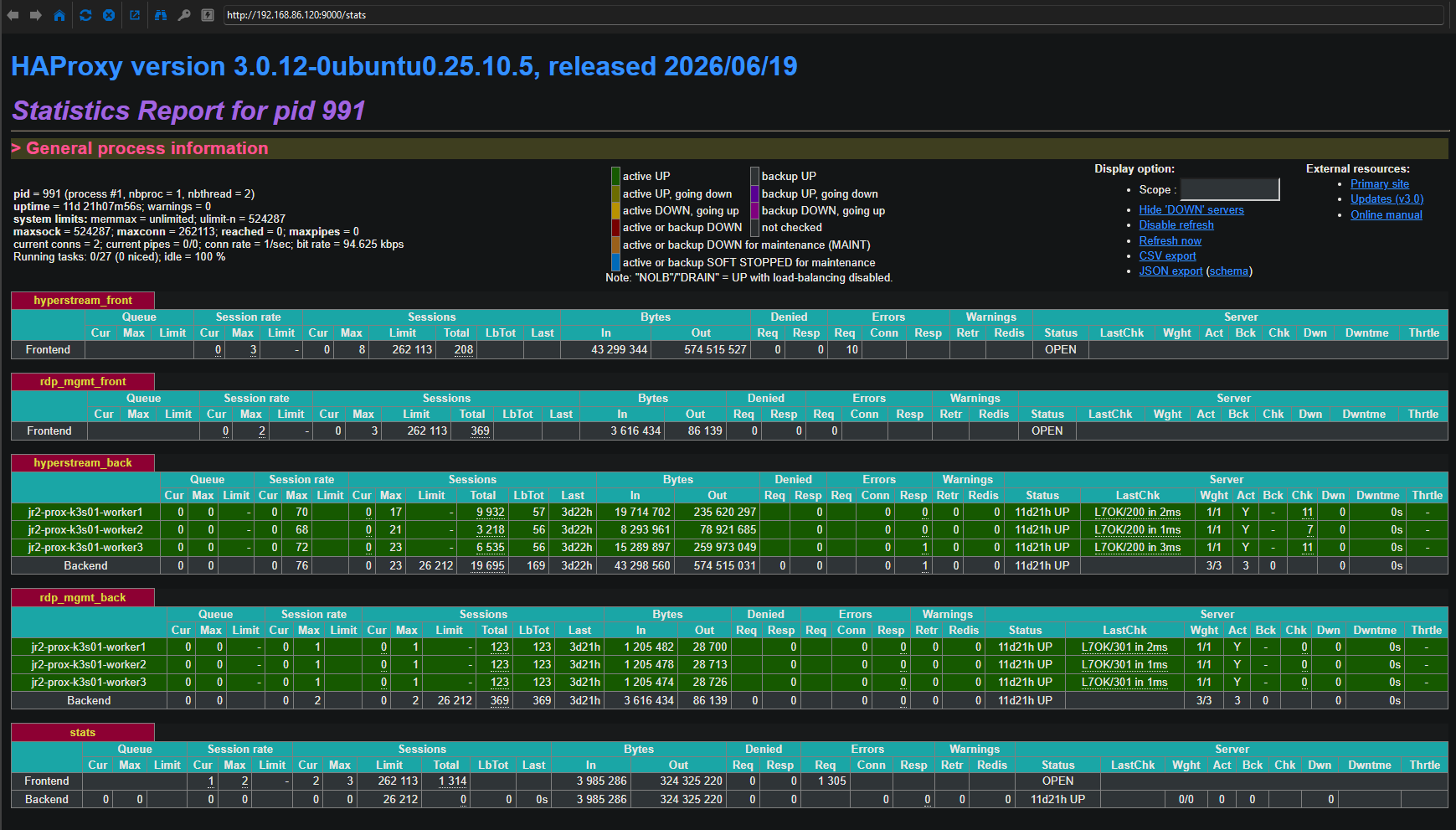
-
Failover test for HAProxy
Bash# On primary sudo systemctl stop keepalived # On secondary ip addr show eth0 # VIPs should move within seconds # Recover sudo systemctl start keepalived
Expected outcome: All backends are UP in the stats UI, VIPs move to the secondary during failover, and connections remain stable through conntrackd synchronization.
Hardening and Operations
-
Restrict management access to the stats port (e.g., firewall source IPs)
-
Rotate certificates regularly; validate chain and key permissions
-
Monitor systemd journals and
/var/log/haproxy.log -
Set
net.ipv4.ip_nonlocal_bind=1persistently (already configured) -
Bash
sudo systemctl stop ssh && sudo systemctl disable ssh
Troubleshooting
VIPs not appearing
sudo systemctl status keepalived
sudo journalctl -u keepalived -n 50
sudo tcpdump -i eth0 vrrp
sudo iptables -L -n | grep VRRP
Backends down
curl -k https://<backend_ip>:<port>/health
sudo grep -A5 "option httpchk" /etc/haproxy/haproxy.cfg
sudo tail -100 /var/log/haproxy.log | grep -i error
TLS issues
sudo openssl x509 -in /etc/haproxy/certs/<fqdn>.pem -text -noout
sudo ls -l /etc/haproxy/certs/<fqdn>.pem   # Expect -rw-------
openssl s_client -connect <vip_or_fqdn>:443
Conntrackd not syncing
ping -c 3 <peer_node_ip>
sudo conntrackd -s
sudo conntrackd -i
sudo tcpdump -i eth0 host 225.0.0.50  # if using multicast
Apporto Integration
-
Hyperstream Launch (external)
-
Create a public DNS A record for the Hyperstream FQDN (e.g., hs.example.com)
-
Point public IP → NAT → Hyperstream VIP (TCP/443; optionally 80→443 redirect)
-
Install a certificate for hs.example.com on the HAProxy Hyperstream frontend
-
-
RDP Management Gateway (internal)
-
Create an internal DNS A record resolving to the RDP Mgmt VIP
-
Restrict inbound sources to your management networks
-
-
Resource Hub configuration
-
Hyperstream Load Balancer FQDN
-
Secure Gateway FQDN (if applicable)
-
RDP Load Balancer FQDN/Hostname (internal)
-
-
Save and validate connectivity from the portal
-
Appendix: Example Variable Patterns
FAQ
References
How‑to Validated On‑prem