

RDS/VDI GPO Settings for On‑Premises Deployments
This page provides recommended Windows Group Policy settings to optimize Remote Desktop Services (RDS) and VDI sessions for Apporto on‑premises environments. Apply these settings to the Organizational Unit (OU) containing session hosts / virtual desktops used by Apporto.
These recommendations are tuned for balanced performance and visual fidelity over mixed networks. Validate in a staging OU before broad rollout.
Who should use this
-
Windows administrators managing Apporto RDSH/VDI hosts
-
Teams preparing golden images and baseline GPOs during Deployment
Scope and prerequisites
-
Applies to Windows Server session hosts and Windows client VDI images joined to Active Directory
-
Requires Group Policy Management Console (GPMC) and rights to link GPOs to target OUs
-
Assumes RDP is the primary protocol; policies below target Computer Configuration unless noted
Policy summary
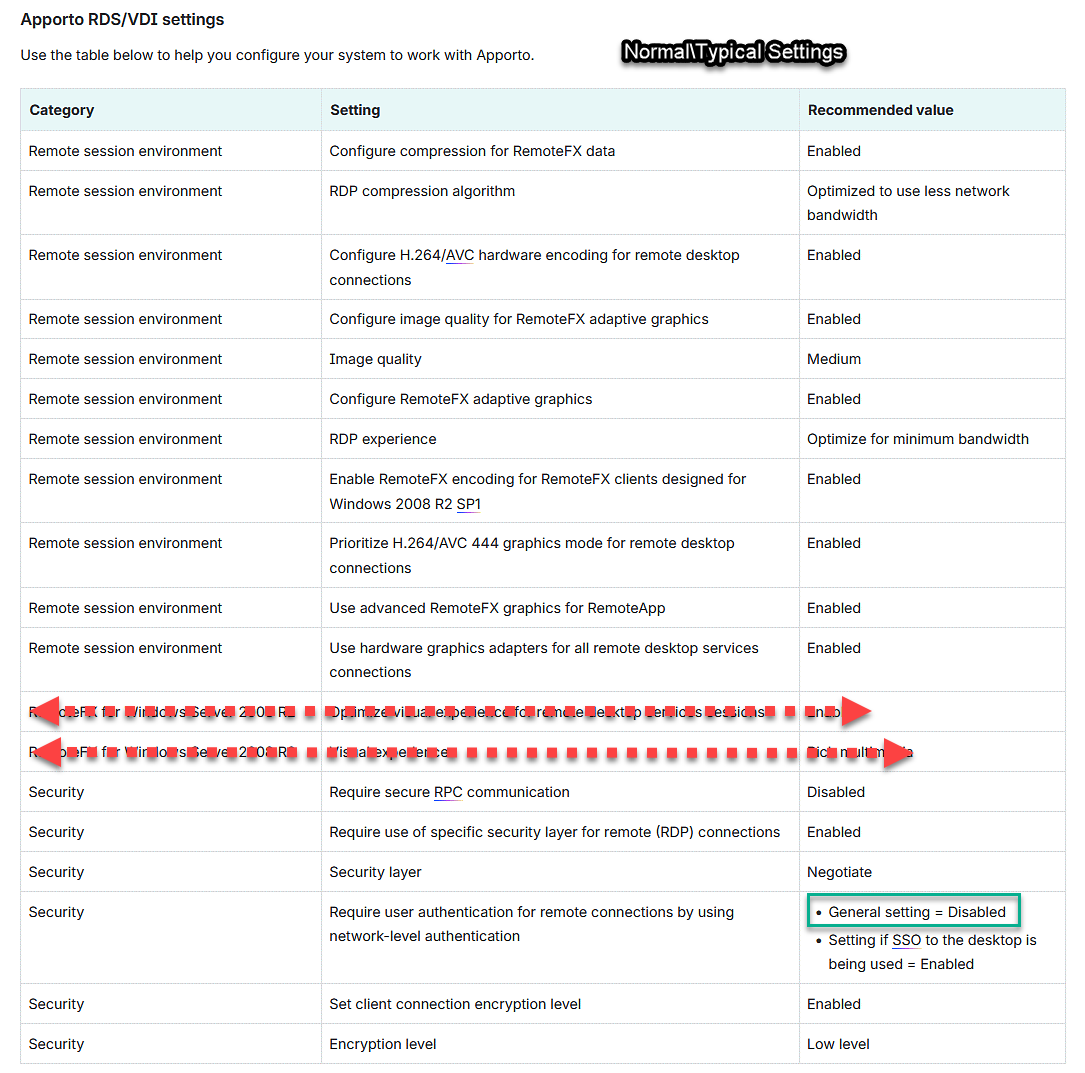
Recommended settings are grouped into three areas. Detailed policy paths and values are listed below.
-
Remote session experience and codec behavior
-
Legacy RemoteFX compatibility toggles (for older stacks)
-
Security transport, encryption, and authentication
Remote session experience
Optimize image quality, compression, and transport for responsive sessions with modern codecs.
|
Policy |
Path |
Recommended |
Notes |
|---|---|---|---|
|
Configure H.264/AVC hardware encoding for Remote Desktop connections |
Computer Configuration → Administrative Templates → Windows Components → Remote Desktop Services → Remote Desktop Session Host → Remote Session Environment |
Enabled |
Prefer H.264/AVC for efficient compression and broad GPU/CPU support |
|
Use hardware graphics adapters for all Remote Desktop Services sessions |
… → Remote Session Environment |
Enabled |
Leverages GPU where available for encoding/decoding |
|
Prioritize H.264/AVC 444 graphics mode for Remote Desktop connections |
… → Remote Session Environment |
Disabled |
444 increases bandwidth; disabling favors 420 for balance |
|
Configure image quality for RemoteFX Adaptive Graphics |
… → Remote Session Environment |
Enabled: Medium |
Medium balances clarity and throughput |
|
Configure compression for RemoteFX data |
… → Remote Session Environment |
Enabled: Optimized to use less network bandwidth |
Improves performance on constrained networks |
|
Optimize visual experience when using RemoteFX |
… → Remote Session Environment |
Enabled |
Lets RDP adapt effects based on conditions |
|
Use WDDM graphics display driver for Remote Desktop Connections |
… → Remote Session Environment |
Enabled |
WDDM required for modern graphics stack |
|
Configure RemoteFX lossless graphics |
… → Remote Session Environment |
Disabled |
Lossless can spike bandwidth; disable for typical workloads |
|
Remote Desktop Protocol: Enable Remote Desktop Protocol 8.0 |
Computer Configuration → Administrative Templates → Windows Components → Remote Desktop Services → Remote Desktop Session Host |
Enabled |
Ensures modern transport and features |
|
Set time limit for active but idle Remote Desktop Services sessions |
… → Connections / Session Time Limits |
Enabled: 2 hours |
Reclaims resources while allowing reasonable idle time |
|
Set time limit for disconnected sessions |
… → Connections / Session Time Limits |
Enabled: 30 minutes |
Frees hosts if clients disconnect unexpectedly |
|
Automatic reconnection |
User Configuration → Administrative Templates → Windows Components → Remote Desktop Services → Remote Desktop Connection Client |
Enabled |
Improves resilience on unstable links |
RemoteFX (legacy) compatibility
Use only if maintaining compatibility with older Windows Server 2008 R2 or legacy clients.
|
Policy |
Path |
Recommended |
Notes |
|---|---|---|---|
|
Optimize visual experience for Remote Desktop Services Session |
Computer Configuration → Administrative Templates → Windows Components → Remote Desktop Services → Remote Desktop Session Host → Remote Session Environment |
Enabled |
Keeps dynamic adaptation available for legacy scenarios |
|
Do not use RemoteFX graphics virtualization (if present) |
… → RemoteFX |
Enabled |
RemoteFX vGPU is deprecated; avoid enabling |
Security settings
Balance compatibility and transport security. Adjust per your organization’s hardening standards.
|
Policy |
Path |
Recommended |
Notes |
|---|---|---|---|
|
Require use of specific security layer for remote (RDP) connections |
Computer Configuration → Administrative Templates → Windows Components → Remote Desktop Services → Remote Desktop Session Host → Security |
Enabled: Negotiate |
Allows TLS when available; falls back for legacy clients |
|
Require user authentication for remote connections by using Network Level Authentication |
… → Security |
Disabled (Enable if your environment uses SSO/Kerberos) |
Disable for widest client compatibility; enable where SSO is required |
|
Set client connection encryption level |
… → Security |
Enabled: High (128‑bit) or FIPS if mandated |
Use FIPS only if required by policy |
|
Always prompt for password upon connection |
… → Security |
Disabled |
Let the client handle credential UX; rely on NLA if enabled |
|
Require secure RPC communication |
… → Security |
Enabled |
Prevents downgrade of RPC channel security |
|
Set client connection encryption oracle remediation |
Computer Configuration → Administrative Templates → System → Credentials Delegation |
Enabled: Mitigated |
Protects against CredSSP vulnerabilities while allowing typical clients |
Implementation steps
-
Create a new GPO (for example, “Apporto RDS/VDI Baseline”).
-
Apply the policies above under Computer Configuration; use User Configuration items only where noted.
-
Link the GPO to the OU that contains Apporto session hosts/VDI pools.
-
On a test host, run
gpupdate /forceand confirm viagpresult /h report.html. -
Validate experience (latency, quality, CPU/GPU utilization, bandwidth) with representative apps.
-
Roll out progressively to production OUs.
Validation checklist
- H.264/AVC in use (check Event Viewer: Microsoft-Windows-RemoteDesktopServices-RdpCoreTS)
- GPU encoding active when hardware is present
- Idle/disconnected session limits enforced
- Target encryption level verified with security team
- Client reconnection behavior confirmed
Troubleshooting
Change history
Initial publication on based on internal reference settings and field feedback.
If you maintain separate gold images for labs vs. remote learners, consider duplicating this baseline and tightening security (enforce TLS, enable NLA) for managed, SSO‑capable cohorts.