

Throughout the Apporto system, a number of screens contain list views. Common functions in these lists include searching, filtering, and adjusting the columns that are visible on the screen. This page explains how to change which columns a list shows, filter a list, and search a list by keyword.
Adjust the list columns
At times, you may need to see a different set of columns from what are currently enabled.
Follow the steps below to change the columns on the screen.
-
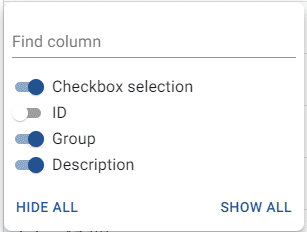
From the top of the list, click columns to trigger the selection pop-up. This is one example of the selector menu.
-
The full list of available columns will appear. Each column’s visibility is controlled by a toggle switch (


-
To adjust the column selections:
-
Click on an enabled column to toggle it off.
-
Click on a disabled column to toggle it on.
-
Click on the hide all link to toggle all columns off.
-
Click on the show all link to toggle all columns on.
-
Enter a value in the “find column” field to filter the column list.
-
-
Click the columns button or a space outside the pop-up to close the column menu.
Filter the list contents
If desired, you can filter the list to display only a subset of items.
The system displays all items in the list by default, until you apply a filter.
Follow the steps below to filter the list.
-
From the top of the page, click filters to trigger the filter pop-up.

-
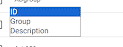
Click on the “columns” dropdown to select which column the filter applies to. This is one example of the dropdown menu.
-
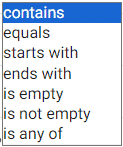
Click on the “operator” dropdown to select the type of filtering to perform, and enter or select your filter criteria into the “value” field.
-
The list updates to display the set of users that match your filter criteria.
-
Click the filters button or a space outside the pop-up to close the filter menu.
-
To remove the filter, click filters again and click the

-
Click the filters button or a space outside the pop-up to close the filter menu.
The table below shows the filter operator options that are available for various lists.
|
Option |
Description |
|---|---|
|
Contains |
Column value includes your search string somewhere in the value |
|
Ends with |
Column value ends with your search string but may contain additional values beforehand |
|
Equals |
Column value is an exact match to your search string |
|
Is any of |
Column value matches any of the items in a list |
|
Is empty |
Column value is blank or NULL |
|
Is not empty |
Column value contains one or more characters |
|
Starts with |
Column value starts with your search string but may contain additional values afterward |
Search by keyword or value
Some screens also provide a search function, in addition to the filters described above. Follow the steps below to search the list.
-
Enter a value into the search field.
-
Click search to locate all records that contain the search term in their name.
-
To remove the search term, delete it from the field.
Search is available on the following screens:
-
Search for groups pop-up
-
Search for desktops pop-up
-
Search for users pop-up