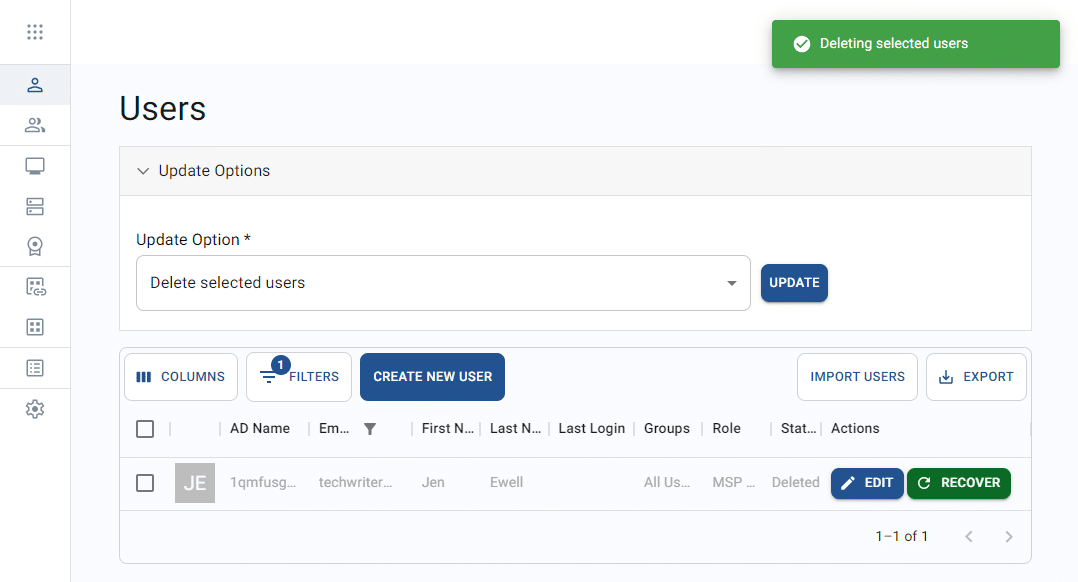

Apporto users may be edited individually or in bulk. Manual bulk edits are possible through the “update options” feature. This page explains how to edit a single user’s profile, linked groups, assigned desktops and desktop features, and how to update several users at once.
Additional bulk editing functionality is handled through user import. For information on this type of update, see the article on Importing users .
Edit a single user
The article on Viewing users explains how to access the Users page.
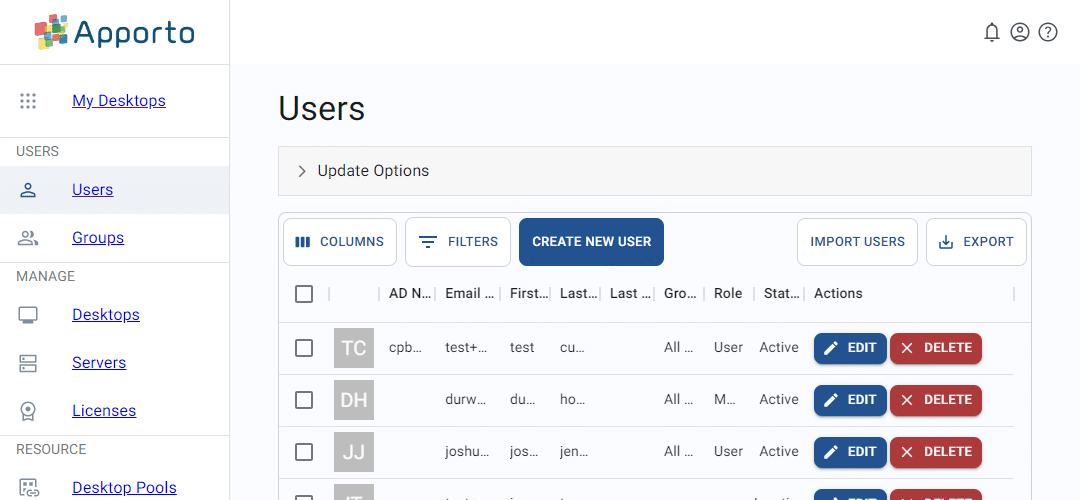
From the list, click on a row’s edit button to trigger the Edit user page. Update any necessary values and then click save to submit the changes. The Edit user page has the following sections, each described below:
-
Profile
-
Linked groups
-
Assigned desktops
-
Desktop features
Edit the user profile
The first section in the Edit user screen covers basic profile information.
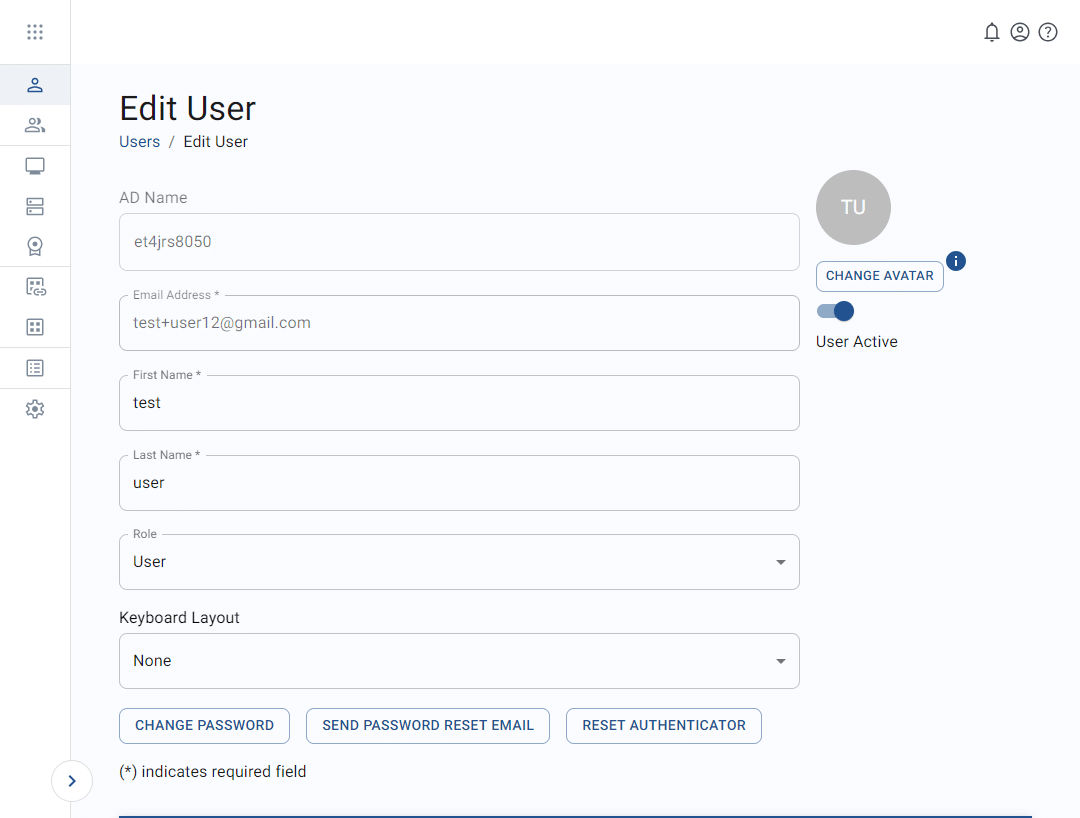
The table below shows the values that make up the user profile.
|
Field |
Datatype |
Required? |
Notes |
|---|---|---|---|
|
AD name |
String |
Conditional |
This field is present if an Active Directory (AD) connection has been established. |
|
Email address |
String |
Yes |
This cannot be edited. |
|
User active (status) |
Boolean |
No |
|
|
Avatar |
Image |
No |
The user icon appears on the Users and User profile pages. Accepted formats include JPEG and PNG. A ratio of 1:1 is recommended (e.g., 100 x 100 pixels). Otherwise, your image will automatically be cropped or resized. |
|
First name |
String |
Yes |
|
|
Last name |
String |
Yes |
|
|
Role |
Lookup value |
No |
|
|
Keyboard layout |
Lookup value |
No |
|
Additional features in this section:
-
Change avatar – This allows you to upload a new image for the user.
-
Change password – This triggers a pop-up for setting a new password.
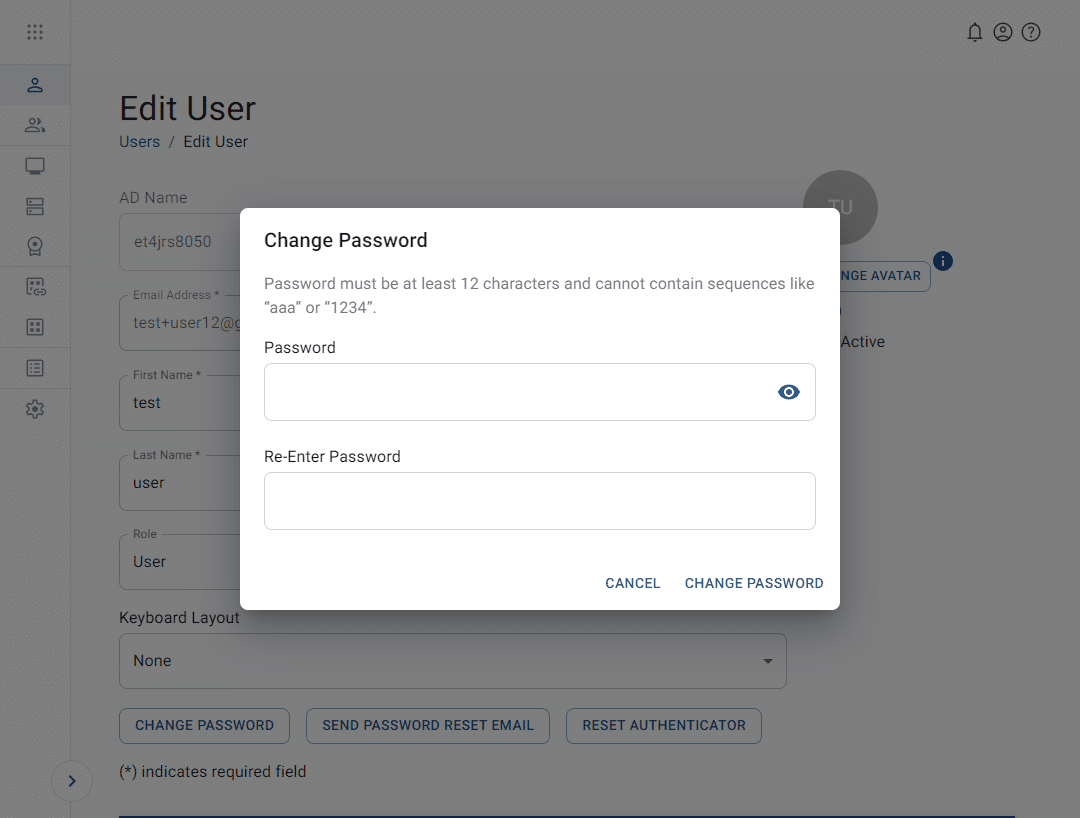
Standard password format requirements will apply:
-
At least 6 characters long
-
Include uppercase and lowercase letters
-
Include numbers
-
Include special characters
-
-
Send password reset email – This function triggers a password reset email to be sent to the user with a single-use login link.
Update linked groups
At the bottom of the Edit user page, you may add or remove memberships to user groups.
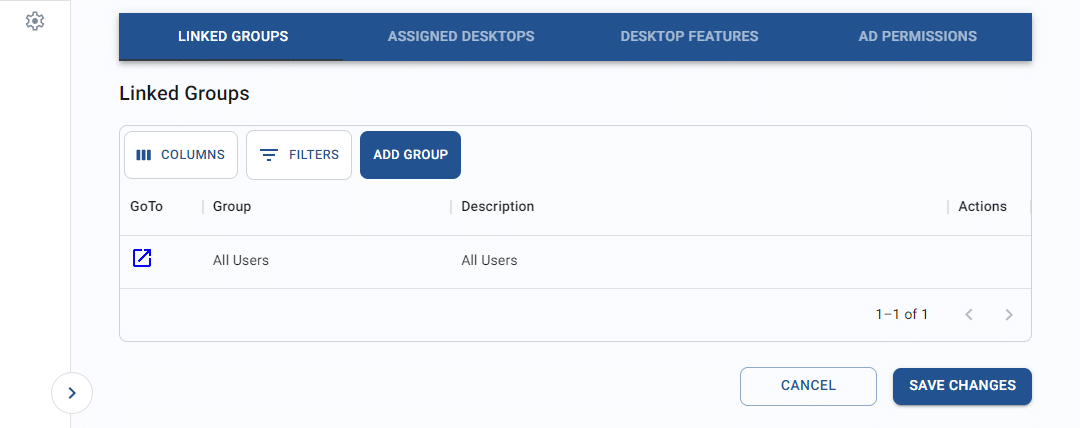
To connect the user to a group, follow the steps below.
-
From the “linked groups” tab, click add group.
-
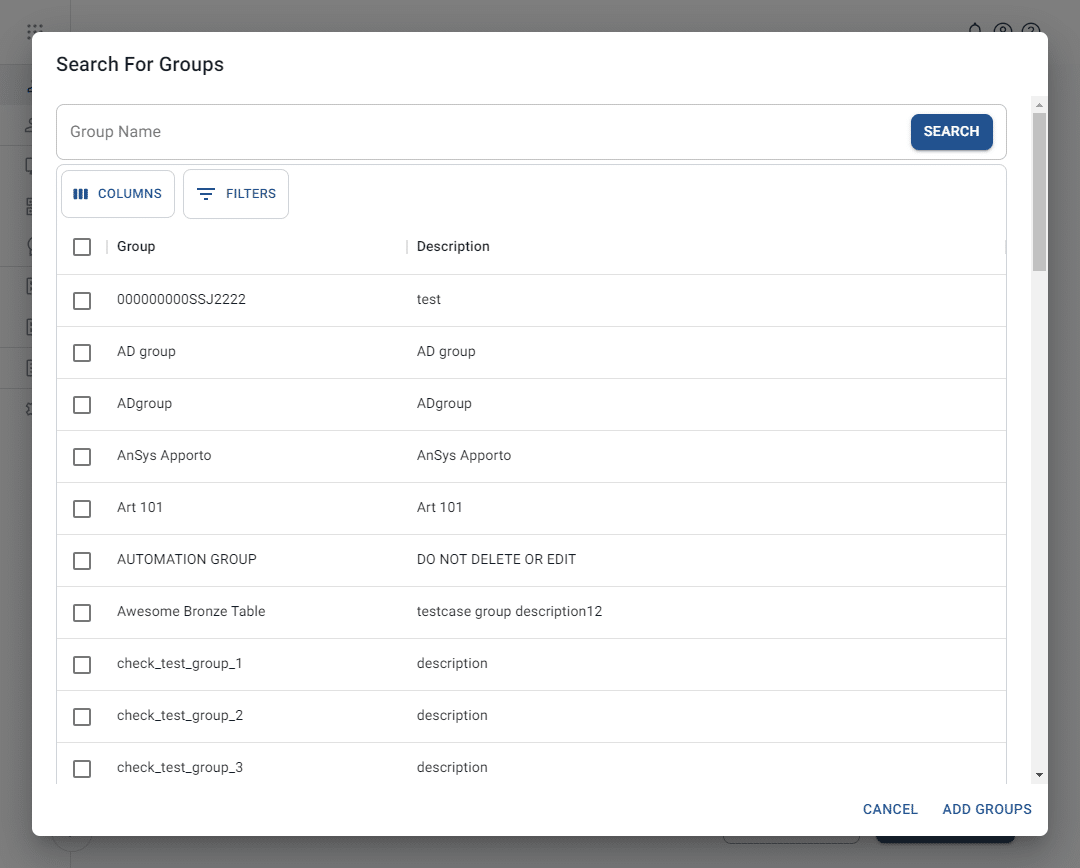
The system will display the Search for groups pop-up. To make it easier to locate the appropriate group, you may adjust the visible columns or filter or search through the list more details can be found in Working with lists .
-
From the list, check one or more checkboxes to select groups for the user.
-
Click add groups. The system will close the pop-up.
-
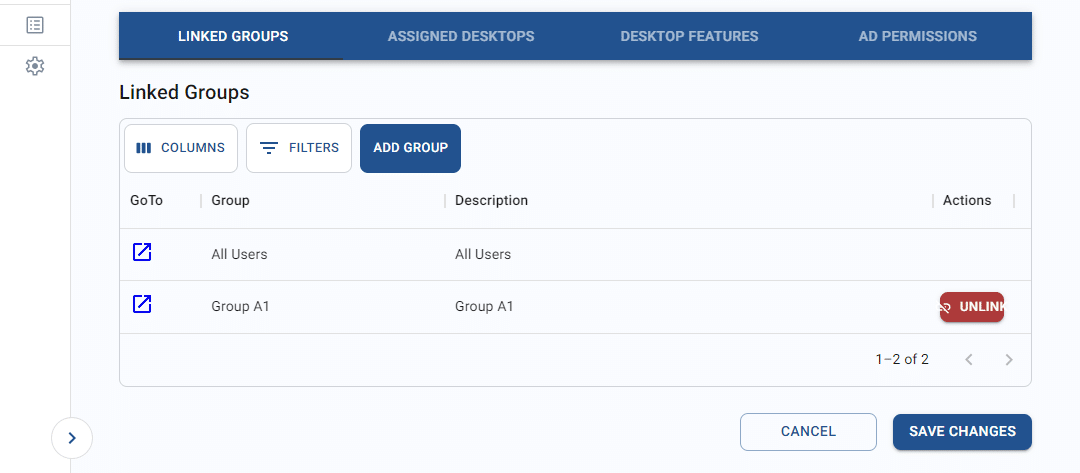
The newly linked groups will display in the tab. Click unlink to remove any unwanted groups.
View assigned desktops
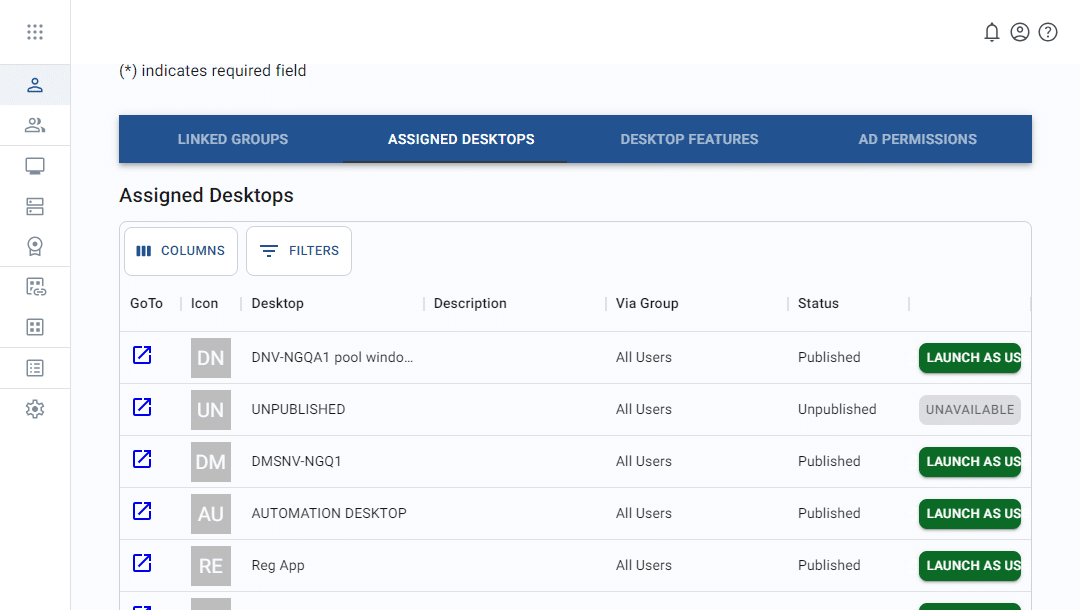
The second tab in the bottom section displays desktops that are assigned to the user.
-
Click on the go to link or the

-
Click on the launch as user button for a desktop application to impersonate the user. See the article on Impersonating a user for more information.
-
To make it easier to locate the appropriate desktop, you may adjust the visible columns or filter through the list. See the article on Working with lists for more information.
Configure desktop features
A number of desktop settings can be configured specifically for the user.
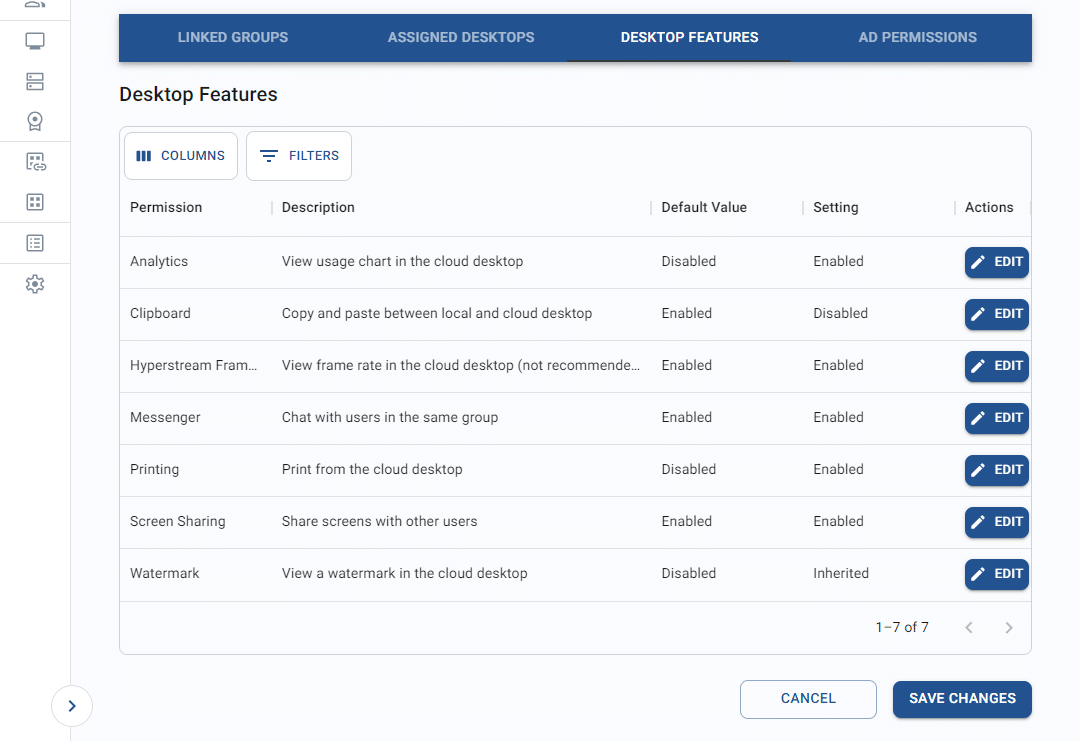
To edit a feature setting, follow the steps below.
-
From the list, click edit on a desktop feature to change its setting. This will trigger the edit pop-up.
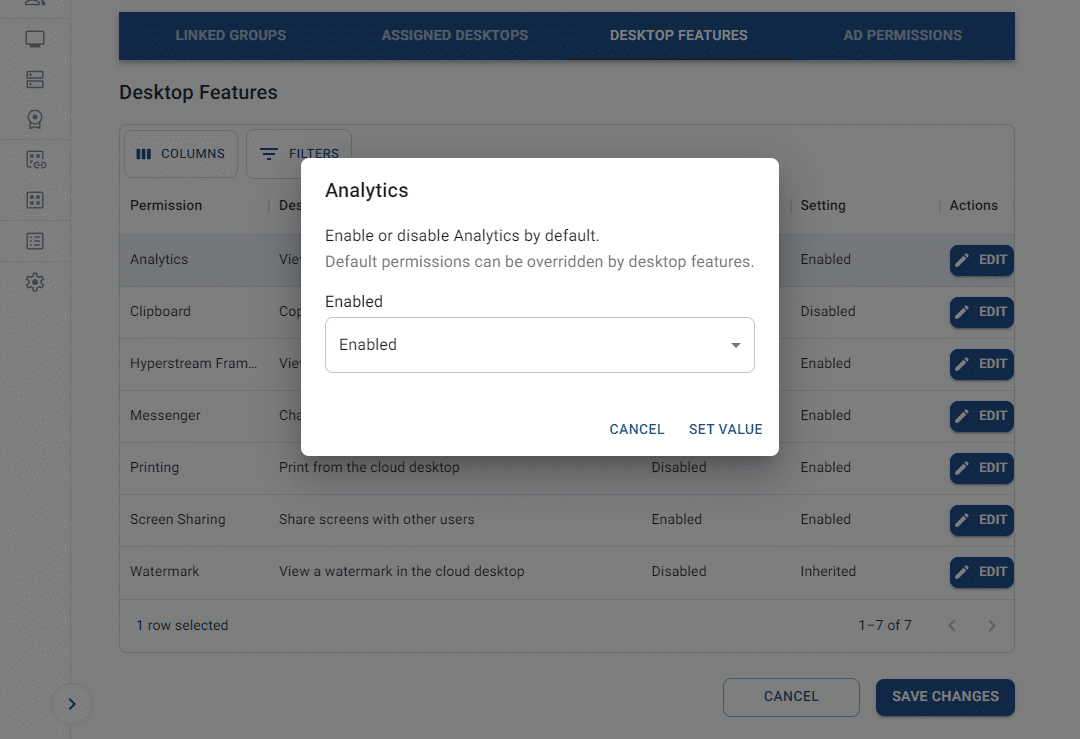
-
Select a new value from the setting dropdown and click set value to save.
-
The updated setting will display in the settings list.
Edit multiple users
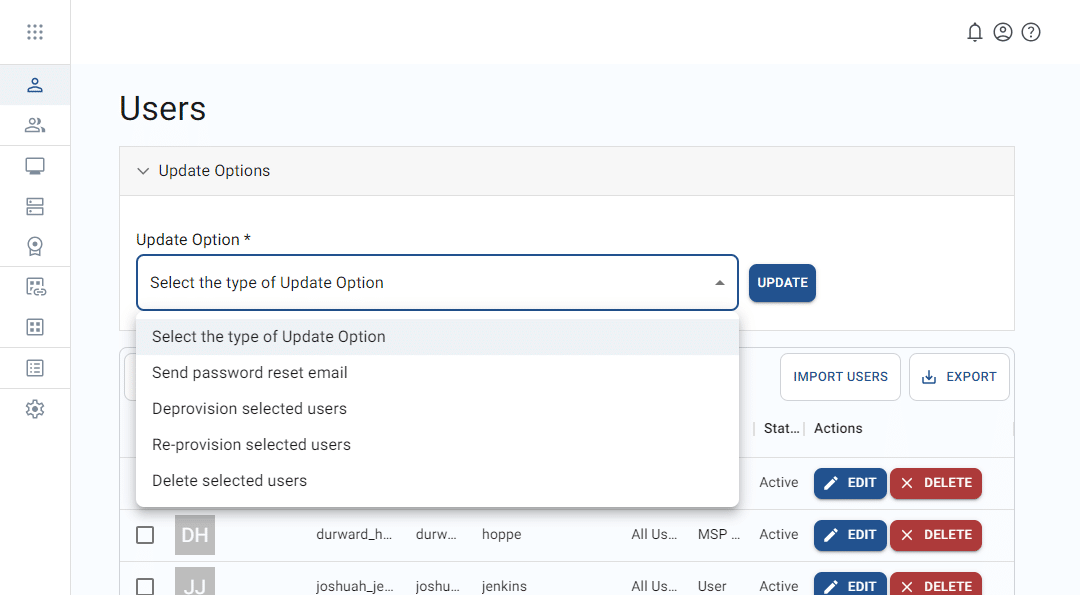
From the Users page, you may apply update functions to one or more users in the list.
Update options
Sending a password reset email invalidates the current passwords of all selected users.
To bulk update users in the list, follow the steps below.
-
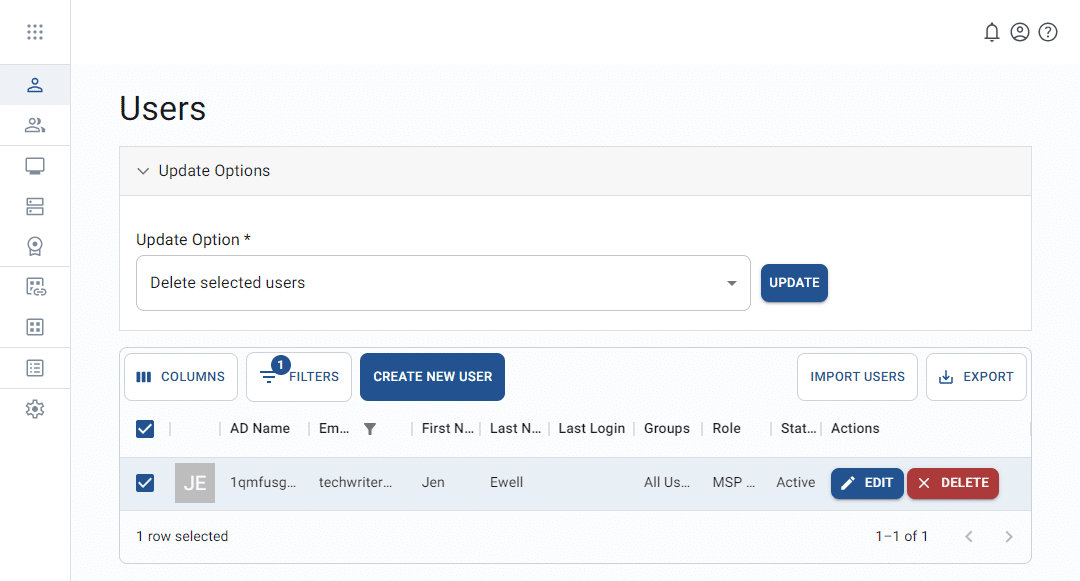
Check one or more row checkboxes to select user records.
-
Click on the update option dropdown.
-
Select one of the following options:
-
Send password reset email – This invalidates the current passwords of all selected users and triggers a password reset email with a single-use login link.
-
Deprovision selected users – See the article on Deprovisioning or deleting a user.
-
Re-provision selected users – This will reactivate the selected users and restore login privileges.
-
Delete selected users – See the article on Deprovisioning or deleting a user.
-
-
Click update to apply the change to the selected records.
-
The system will display a confirmation of the change, and the user’s action options will change.