

Some institutions require that users authenticate only through the institution's own identity provider. Force SSO login makes that the default for your tenant: anyone arriving without a session is sent straight to the identity provider you nominate, with no Apporto login page and no provider chooser in between.
The sign-in page remains available for the people the requirement does not cover. Local accounts, LDAP users, and Apporto Support still sign in there — it is simply no longer where unauthenticated visitors land by default.
This setting applies to your whole tenant. It is off unless you turn it on, and turning it off again takes effect immediately.
Before you begin
-
The identity provider you want to force must already be configured and working in your tenant's Keycloak realm. If it is not, set it up first using the instructions on the parent page, and confirm a user can sign in through it from the provider chooser.
-
Your tenant must be using NextGen authentication.
-
You will need the provider's alias — not its display name. Finding it is covered below.
Find your identity provider's alias
The setting identifies the provider by its Keycloak alias, which is the short identifier given to it when it was added — for example entra-oidc or saml. This is not the same as the display name shown on the sign-in button, which might read something like "University Account".
To find it, open the Keycloak admin console for your realm and go to Identity Providers. The alias is listed in the Alias column, alongside the display name.
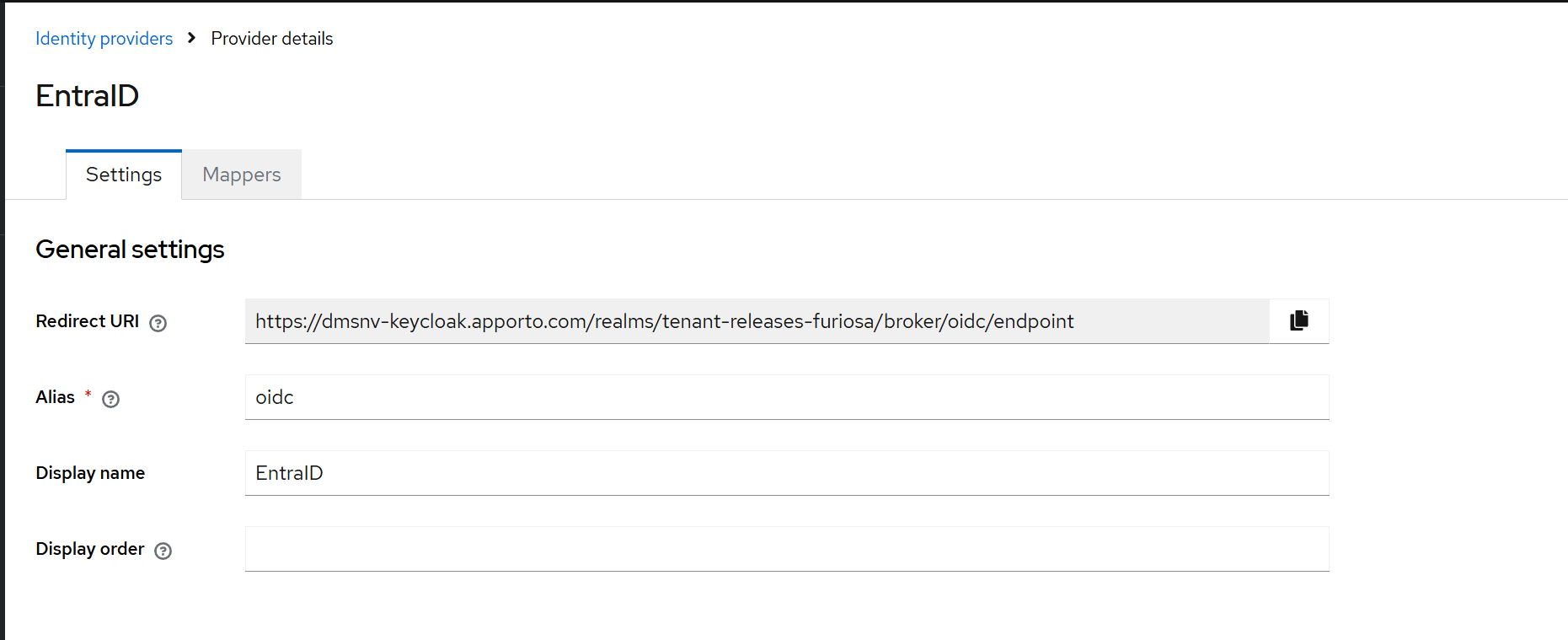
The alias must match exactly, including capitalization. entra-oidc and Entra-OIDC are not the same value, and only an exact match works.
Turn on Force SSO login
-
In Apporto, go to Setup → Identity Management.
-
Turn on Force SSO login.
-
Enter the provider alias in the accompanying field. The field is required before the setting will save.
-
Save.

Verify it before telling your users
An incorrect alias does not produce an error message, so this check is worth doing every time you enable or change the setting.
Open your tenant in a private or incognito window. You should be taken directly to your identity provider's own sign-in screen, without seeing an Apporto login page or a list of providers to choose from.
If you land on a page listing your providers instead, the alias does not match any provider in the realm. Return to Identity Providers in the Keycloak admin console, copy the alias exactly as it appears, and try again.
What your users will see
Signing in. An unauthenticated visitor — whether they open your tenant's address or a link to a page inside it — is taken to your identity provider. They see a brief redirecting screen on the way, which also carries a "continue to sign in" link in case the automatic redirect does not complete, for example where scripts are blocked or a screen reader is in use.
Signing out. Users land on a confirmation page with a Sign in button rather than being returned to the identity provider automatically. This is deliberate: an automatic return would silently sign them straight back in through their still-active provider session, so signing out would not actually sign them out.
If sign-in does not complete. Users reach a page offering to try again, with the retry under their control rather than automatic. Both this page and the signed-out page carry a quiet link to other sign-in options, so nobody is stranded.
Signing in as a local, LDAP, or Apporto Support user
Force SSO login changes where unauthenticated visitors are sent by default. It does not remove the ordinary sign-in page, which stays reachable at /login on your tenant's address — for example https://your-tenant.apporto.com/login.
That page is unchanged. It offers the local email and password form, the LDAP form where LDAP is in use, and a single sign-on button that leads to the full list of providers in your realm, including Apporto Support if you have that enabled.
Keep this route in mind for your administrators. If your local administrator accounts sign in with an email address and password, they need to go to /login directly rather than to your tenant's front door. It is worth recording that address somewhere your IT team can find it before you enable the setting.
Turning it off
Turn off Force SSO login on Setup → Identity Management and save. The change is immediate and needs no involvement from Apporto. Unauthenticated visitors go back to the ordinary sign-in page, and so does signing out.
Troubleshooting
Users see a list of identity providers instead of going straight to ours. The alias does not match a provider in your realm. Check it against the Alias column in Identity Providers, watching for capitalization and for stray spaces.
Users see the Apporto sign-in page. Confirm the setting is on and saved, and that your tenant is using NextGen authentication. If it has only just been enabled, ask the user to reload.
An administrator cannot sign in. Local and LDAP administrators sign in at /login, not at your tenant's front door. See the section above.
Signing out appears to do nothing. If a user is returned to your tenant already signed in, their identity provider session is still active. Signing out of Apporto does not sign them out of the provider; they can do that from the provider directly.