

Configuring identity management settings
Apporto offers a number of authentication methods for users and administrators.
Use the information in this guide to learn how to:
View identity management settings
Identity management settings can be viewed and updated from the “Identity Management” tab of the Setup screen.
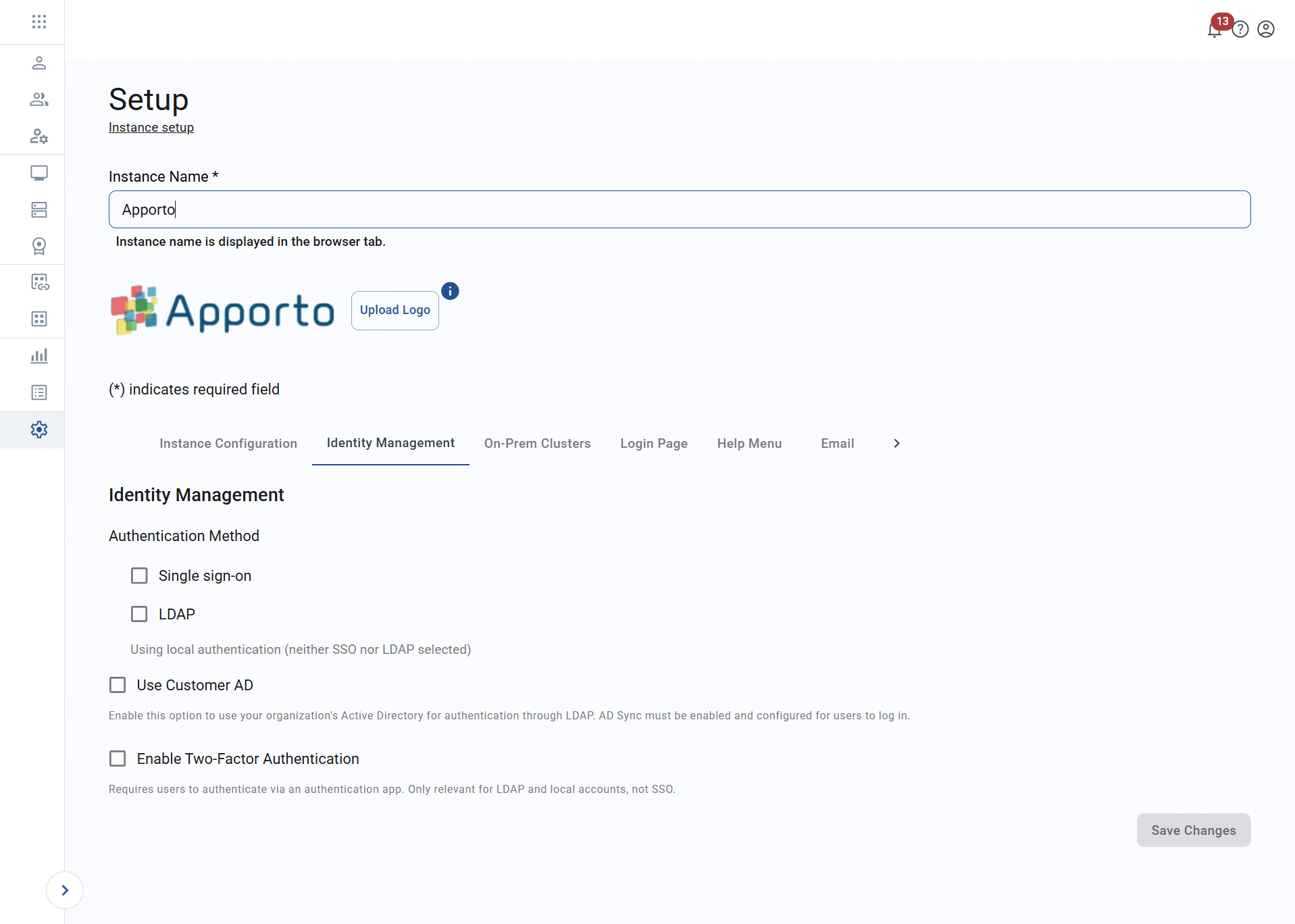
To view identity management settings, follow the steps below.
-
to the system using your credentials.
-
Click setup or the

icon in the navigation panel to view the Setup screen.
-
Click on the “Identity Management” tab.
-
The current or default identity management settings will display.
The table below shows the values that make up identity management configuration.
|
Field |
Datatype |
Required? |
Notes |
|---|---|---|---|
|
Authentication method |
Boolean |
No |
Local authentication will be used by default if no method is selected. Local accounts can also be used in combination with the authentication methods listed above. |
|
Use customer AD |
Boolean |
No |
Enables Active Directory (AD) authentication/authorization and the “AD Sync” tab See the related articles section for additional information. |
|
Enable SSO to the desktop |
Boolean |
No |
Certificate-based authentication allows users to access desktops/apps without a second sign-in This option is available for SSO and LDAP authentication methods. |
|
Enable two-factor authentication |
Boolean |
No |
Requires a third-party authentication app This option is available for LDAP and local authentication methods. |
|
SSO domains |
List |
Conditional |
List of domains for the SSO (to the portal) authentication method At least one domain must be configured if SSO is selected as the authentication method. |
|
Windows domain |
String |
Conditional |
This value is required for SSO to the desktop. |
|
Domain PDC (FQDN or hostname) |
String |
Conditional |
Primary domain controller This value is required for SSO to the desktop. |
|
Root certificate |
String |
Conditional |
Upload or entry of certificate string This value is required for SSO to the desktop. |
|
Certificate generation host (FQDN or hostname) |
String |
Conditional |
This value is required for SSO to the desktop. |
Select an authentication method
There are three main authentication methods for accessing the Apporto portal (app store):
Single sign-on (SSO)
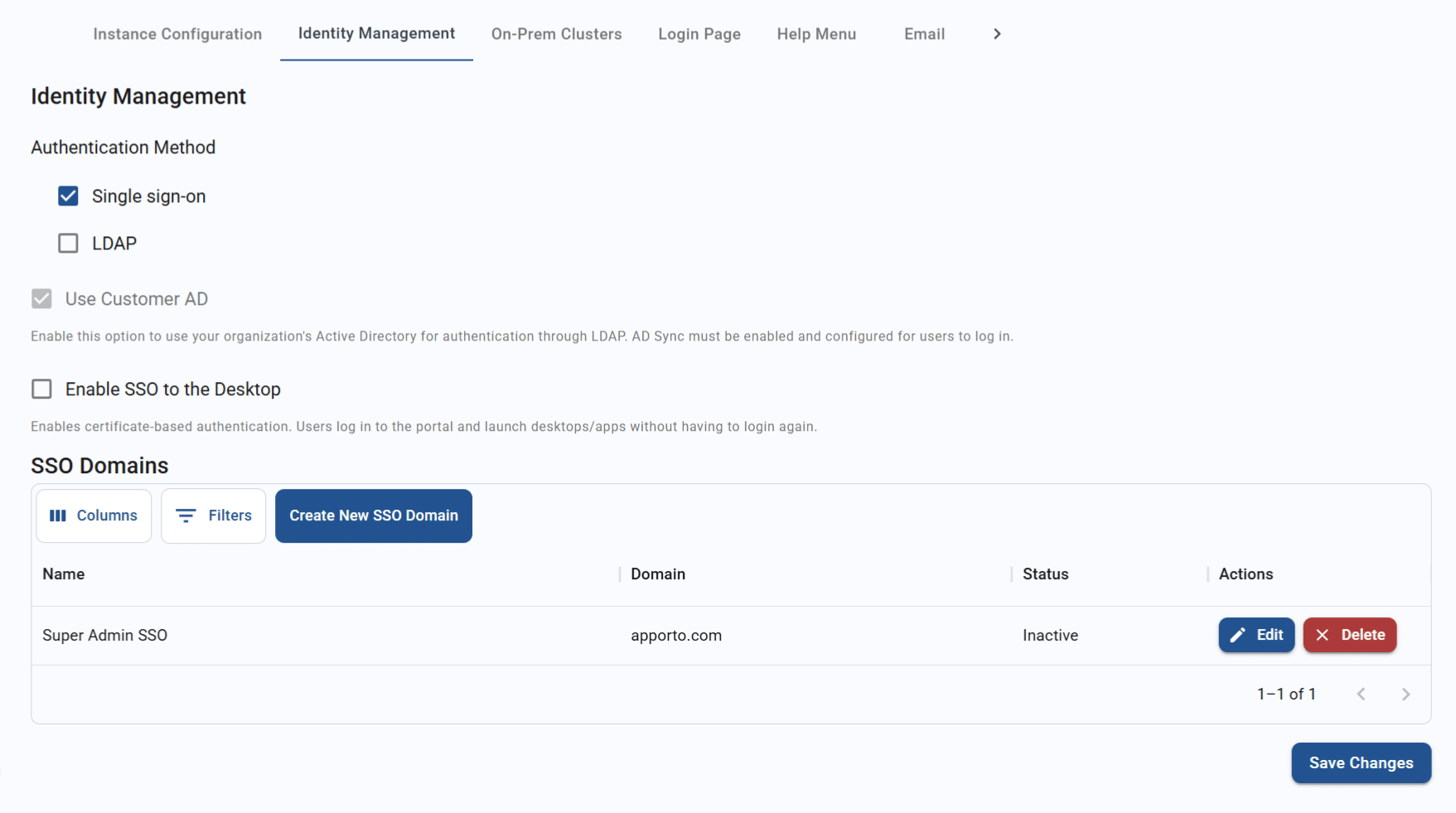
To enable SSO as your primary authentication method, follow the steps below.
-
Check the “Single sign-on” checkbox.
-
The SSO domain section will now display. Configure one or more SSO domains.
-
Click/tap save changes.
Additional options for SSO authentication include the use of your own Active Directory setup and a second SSO method to direct users from the portal into apps/desktops.
LDAP
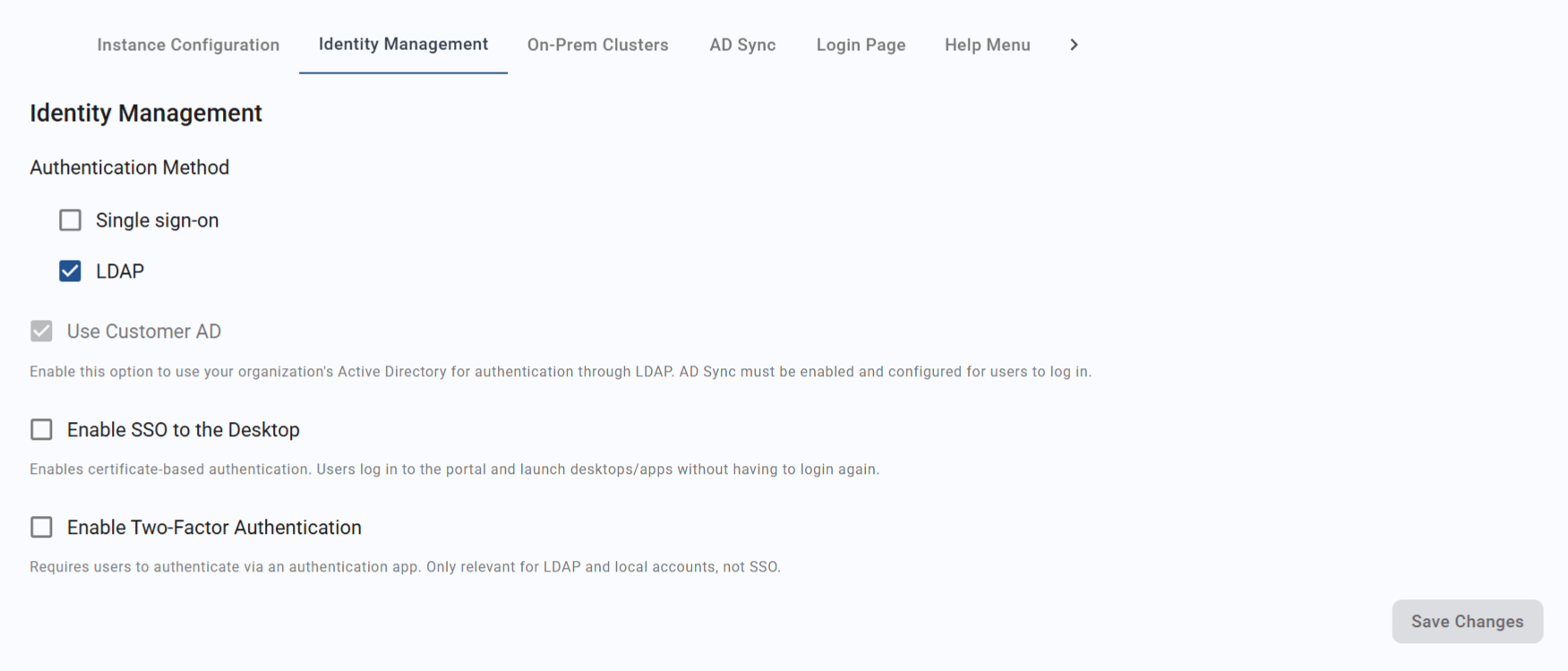
To enable LDAP as your primary authentication method, follow the steps below.
-
Check the “LDAP” checkbox.
-
The “Use customer AD” setting will automatically be checked.
-
Click/tap save changes.
-
The “AD Sync” tab will now display. See the article on configuring AD sync for more information.
Additional options for LDAP authentication include an SSO method to direct users from the portal into apps/desktops and the use of two-factor authentication.
Local accounts
All Apporto instances allow for the use of local accounts (i.e., email addresses and passwords set up within Apporto). You may use this type of authentication on its own or in combination with either of the authentication methods detailed above. This is especially useful for getting other admin users into the system to help with instance configuration. See the article on managing users for more information.
Use your organization’s Active Directory (AD)
The “Use customer AD” setting can be used in combination with the following:
|
Authentication method |
Cloud |
On-premises |
|---|---|---|
|
Single sign-on |
Optional |
Auto-enabled |
|
LDAP |
Auto-enabled |
Auto-enabled |
|
Local accounts |
N/A |
N/A |
To use your organization’s AD setup, follow the steps below.
-
Check the “Use customer AD” checkbox.
-
Click/tap save changes.
-
The “AD Sync” tab will now display. See the article on configuring AD sync for more information.
Enable SSO to the desktop
The SSO to the desktop feature uses certificates to grant the user access apps and desktops without needing a second sign-in step.
Portal settings
This setting can be used in combination with the following:
|
Authentication method |
Cloud |
On-premises |
|---|---|---|
|
Single sign-on |
Optional |
Optional |
|
LDAP |
Optional |
Optional |
|
Local accounts |
N/A |
N/A |
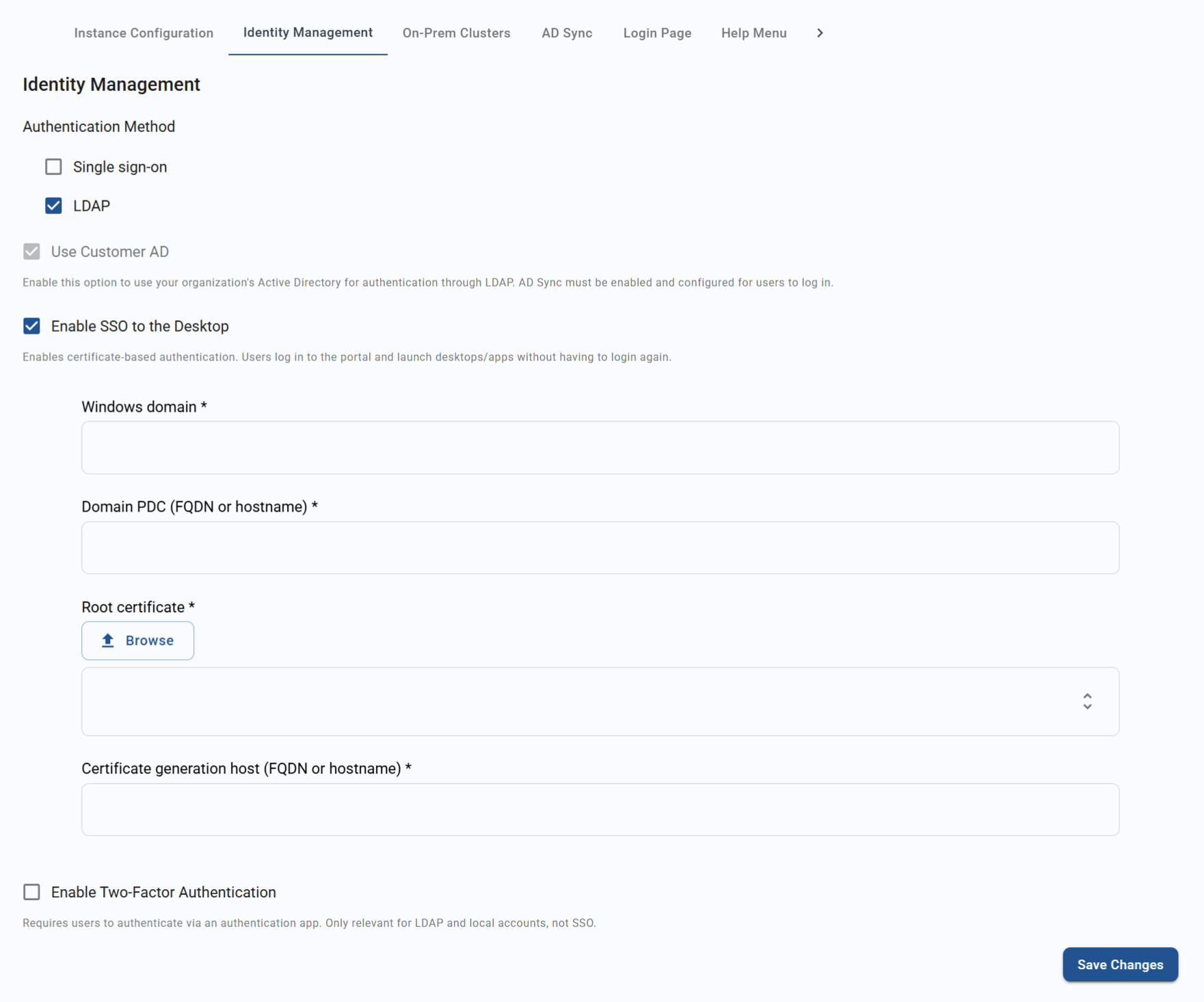
To enable the SSO to desktop feature, follow the steps below.
-
Check the “Enable SSO to the desktop” checkbox.
-
The related fields will now display. Enter the necessary values.
-
For the root certificate, you may type or paste in the certificate text. Or you can click/tap the browse button to select a certificate file from your local file storage. For instructions on how to create the file, visit the article on generating SSO certificates.
-
-
Click/tap save changes.
Enable two-factor authentication (2FA)
The 2FA setting can be used in combination with the following:
|
Authentication method |
Cloud |
On-premises |
|---|---|---|
|
Single sign-on |
N/A |
N/A |
|
LDAP |
Optional |
Optional |
|
Local accounts |
Optional |
Optional |
To enable the 2FA feature, follow the steps below.
-
Check the “Enable two-factor authentication” checkbox.
-
Click/tap save changes.
-
Users will now be prompted to use a mobile authenticator app to sign in to the portal. See the article on for more details.
Migrated from the Apporto Help Center: https://www.apporto.com/help-center/configuring-identity-management-settings