

Configuring the Login page
When users navigate to your Apporto instance, they will see the Apporto Login page. Multiple authentication methods are available, and you can configure them from site settings.
Use the information in this guide to learn how to:
You may also wish to review the article on configuring single sign-on (SSO) domains.
Customize the Login page
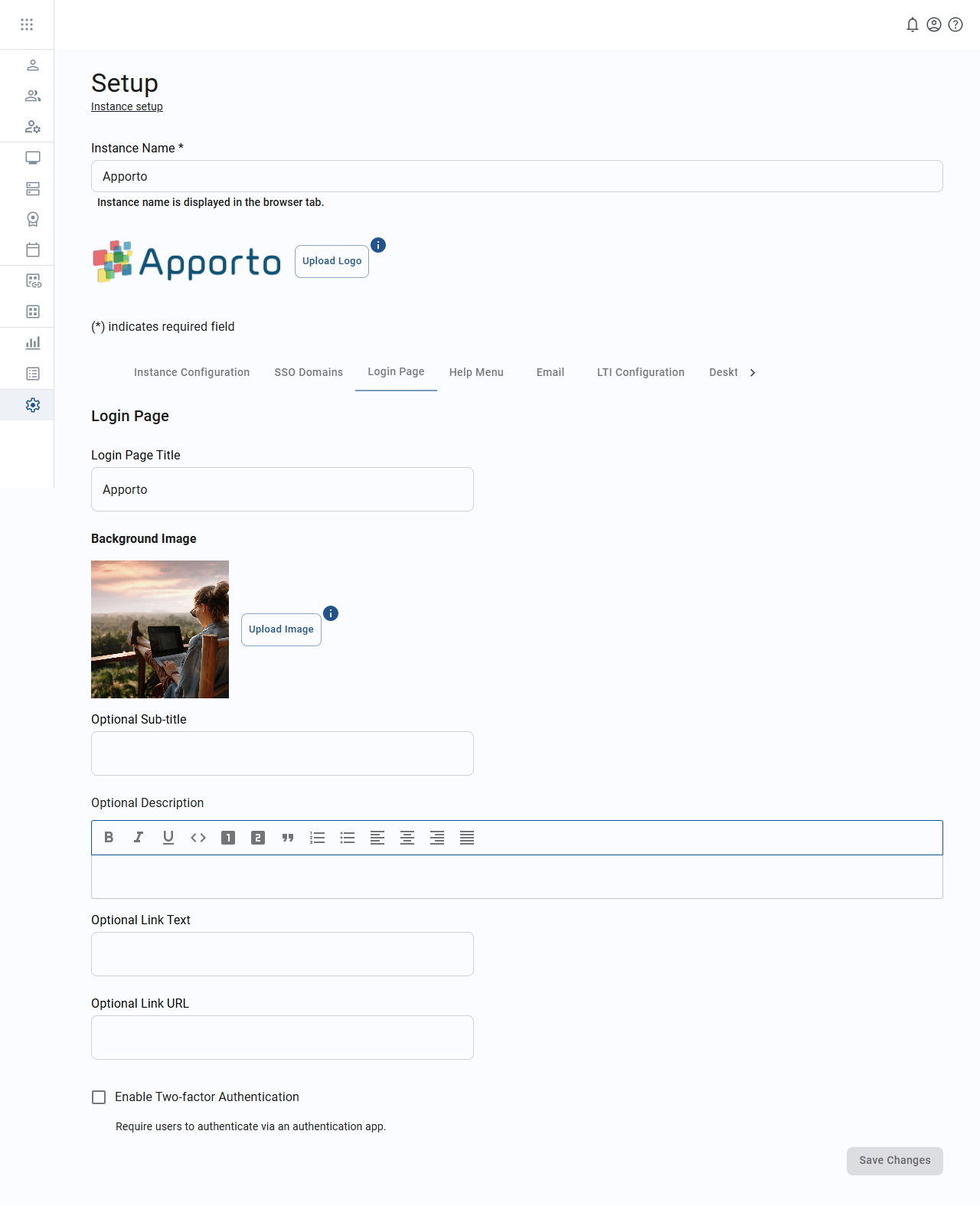
The table below shows the values that make up the Login page.
|
Field |
Datatype |
Required? |
Notes |
|---|---|---|---|
|
Login page title |
String |
Yes |
Short message to display above the username/password prompt. |
|
Background image |
Image file |
No |
If no image is added, a default image will display Accepted formats include JPEG and PNG. A ratio of 8:8 is recommended (e.g., 800 x 800 pixels). Otherwise, your image will automatically be cropped or resized. |
|
Subtitle |
String |
No |
Short title to show under the username/password prompt |
|
Description |
String |
No |
Text that can be displayed below the subtitle |
|
Link text |
String |
No |
Used with the link URL to provide a text link |
|
Link URL |
Hyperlink |
No |
Optional link to show under the description |
Additional features in this section:
-
Enable two-factor authentication – This allows you to add a secondary security feature to the login process for user accounts using local authentication.
Follow the steps below to customize the Login page.
-
Click setup or the

icon in the navigation panel to view the Setup screen.
-
Click on the “Login page” tab in the lower part of the page.
-
Enter your desired values.
-
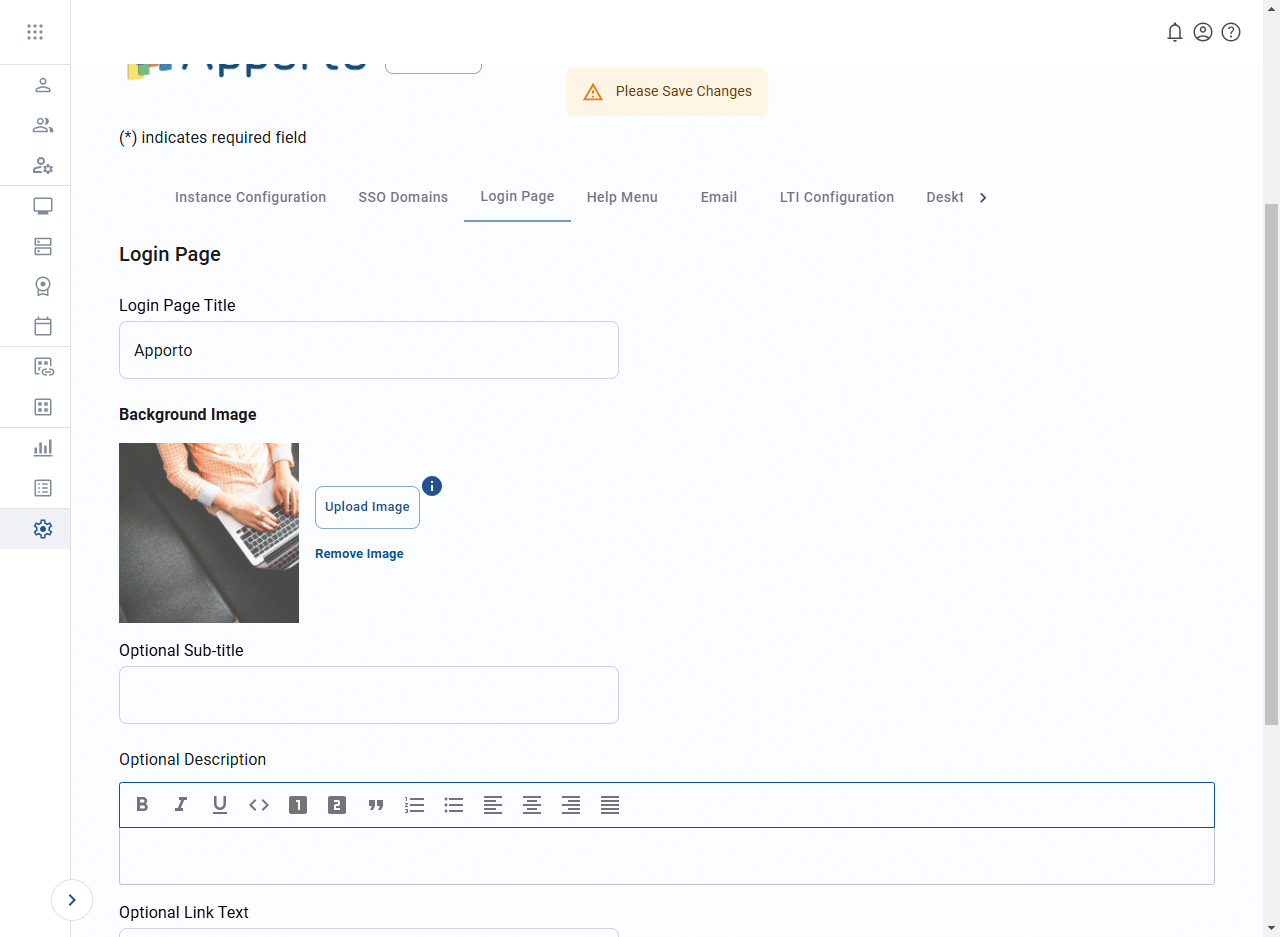
If you wish to add your own background image
-
Click upload image to trigger the file manager.
-
Select a file from your local storage. The ideal image has an aspect ratio of 1:1 (e.g., 800 x 800 pixels) and is a PNG or JPEG file.
-
The system will display a preview of your image and prompt you to save the change.
-
If you are not satisfied with the preview, click remove image to remove the current file and then click upload image again to import a new image.
-
-
Click save changes to update the Login page with your new settings.
Enable two-factor authentication (2FA)
Two-factor authentication (2FA)–also known as multi-factor authentication (MFA)–is a login method that requires users to provide a combination of security measures. Checking the “enable two-factor authentication” setting for the Login page will require users to use an authenticator app to generate login credentials. See the MFA section of the article on for more information.
Migrated from the Apporto Help Center: https://www.apporto.com/help-center/configuring-the-login-page