

Draining server sessions
When administrators need to perform maintenance on on-premises servers, it is important to close out server traffic. The drain mode feature allows a production server to stop creating new sessions while allowing current sessions to continue running until the users close them out.
Drain mode is currently available for the following:
-
Multi-session servers
-
Non-persistent VMs in single-session pools
Use the information in this guide to learn how to:
Immediately drain a server
To immediately put servers or VM pools into drain mode, follow the steps below.
-
Locate a multi-session server or single-session VM pool to put into drain mode.
-
Multi-session server
-
From the “Multi-Session” tab, click/tap on the Manage Server menu button for a production server.
-
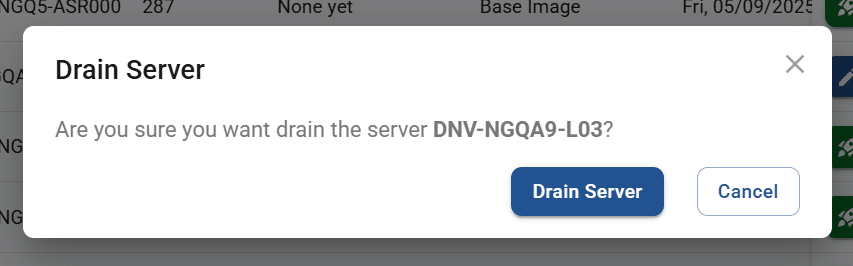
Click/tap on Drain. The system will display a confirmation dialog.
-
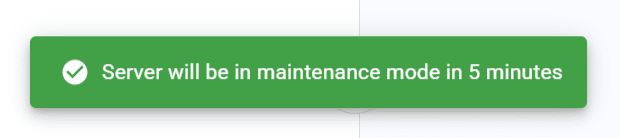
Click/tap Drain Server to immediately start drain mode. The system will display a message that the drain will begin in a few minutes.
-
If another server in the same pool is accepting connections, then new sessions will be routed to that server.
-
If there are no other servers in the same pool that are accepting connections, then end users trying to connect will be shown a message saying that no servers are currently available.
-
Administrators will still be able to connect to the server from within the Servers page.
-
-
-
Single-session VM pool
-
From the “Single-Session” tab, click/tap on the Manage Pool menu button.
-
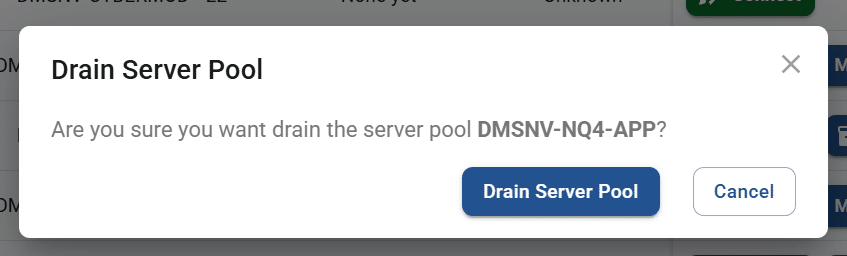
Click/tap on Drain. The system will display a confirmation dialog.
-
Click/tap Drain Pool to immediately start drain mode. The system will display a message that the drain will begin in a few minutes. (It will look similar to the message above for a server.) No new connections will be allowed, though administrators will still be able to connect to the pool’s VMs from within the Servers page.
-
-
-
Once the last session has drained from the server or pool, the system will display a notification to administrators.
Schedule a server drain
COMING SOON
Take a server out of drain mode
To take a server or VM pool out of drain mode, follow the steps below.
-
Locate a multi-session server or single-session VM pool that is currently in drain mode.
-
Multi-session server
-
From the “Multi-Session” tab, click/tap on Manage Server.
-
Click/tap on Bring Online.
-
The system will display a message stating that the pool will be brought back online in a minute. (It will look similar to the message below for a server pool.)
-
-
Single-session VM pool
-
From the “Single-Session” tab, click/tap on Manage Pool.
-
Click/tap on Bring Online.
-
The system will display a message stating that the pool will be brought back online in a minute.

-
-
Migrated from the Apporto Help Center: https://www.apporto.com/help-center/draining-server-sessions