

Creating a desktop pool
Desktop pools enable administrators to orchestrate multiple server pools. One use case for this is when the admin wants end users to connect to virtual desktops running in different regions based on the end user’s location. Another use case for desktop pools is cloud bursting–automatically adding cloud capacity to an on-prem server pool.
Use the information in this guide to learn how to:
Create a new desktop pool
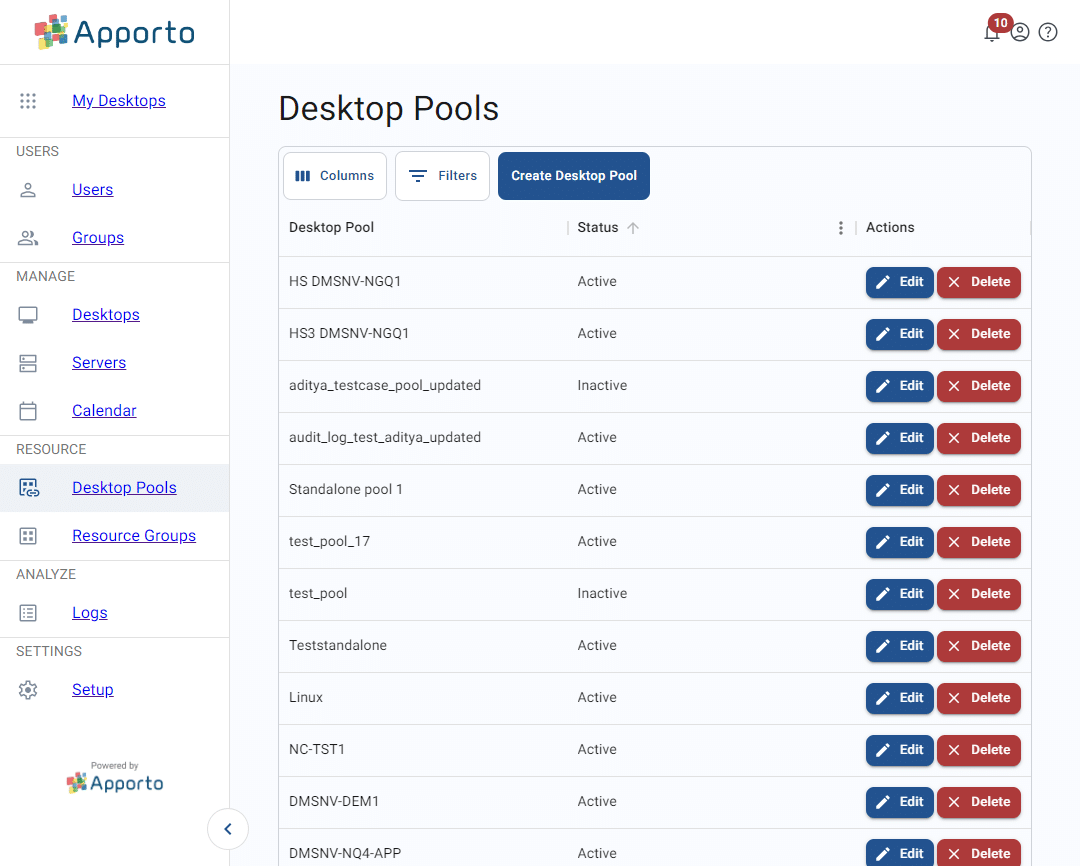
To create a new desktop pool, click create desktop pool from the top of the Desktop pools screen. This will direct you to the Create desktop pool screen.
Create the desktop pool profile
The first part of the desktop pool configuration is the pool profile.
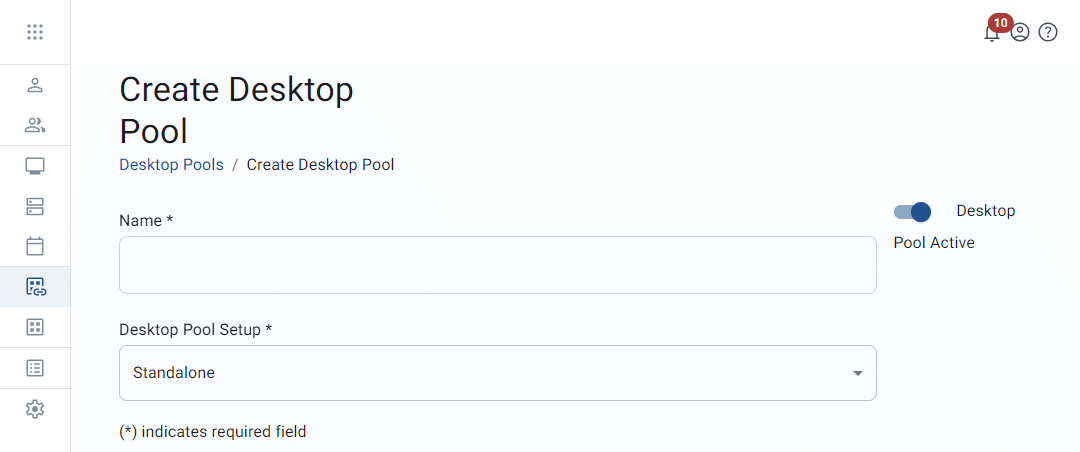
The table below shows the values that make up a desktop pool profile.
|
Field |
Datatype |
Required? |
Notes |
|---|---|---|---|
|
Name |
String |
Yes |
|
|
Desktop pool setup |
Lookup value |
Yes |
|
|
Desktop pool active |
Boolean |
Yes |
By default, the desktop pool will be active. |
To configure the desktop pool profile, configure the settings above and click save changes to create the new desktop pool.

Associate server pools
At the bottom of the Create desktop pool page, you may view the list of associated server pools.
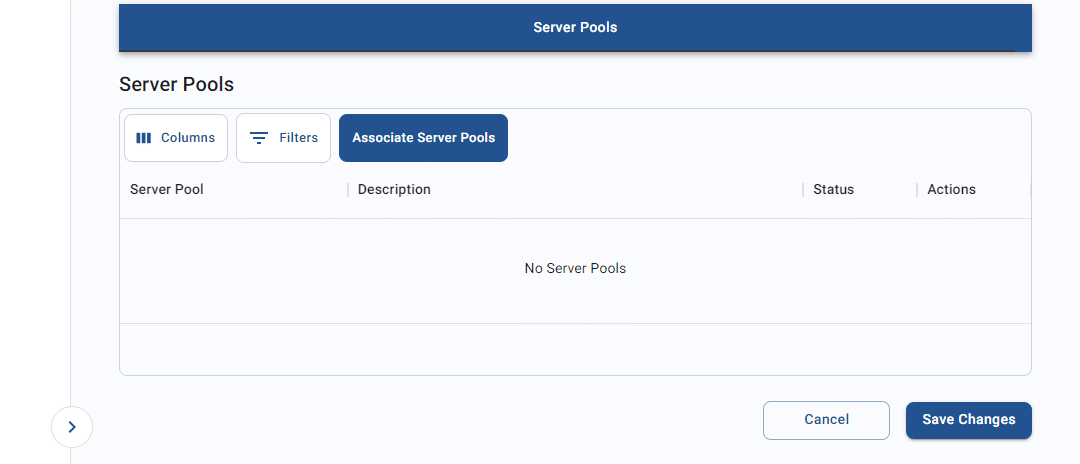
To assign a server pool to the desktop pool, follow the steps below:
-
From the “Server Pools” section, click associate server pools.
-
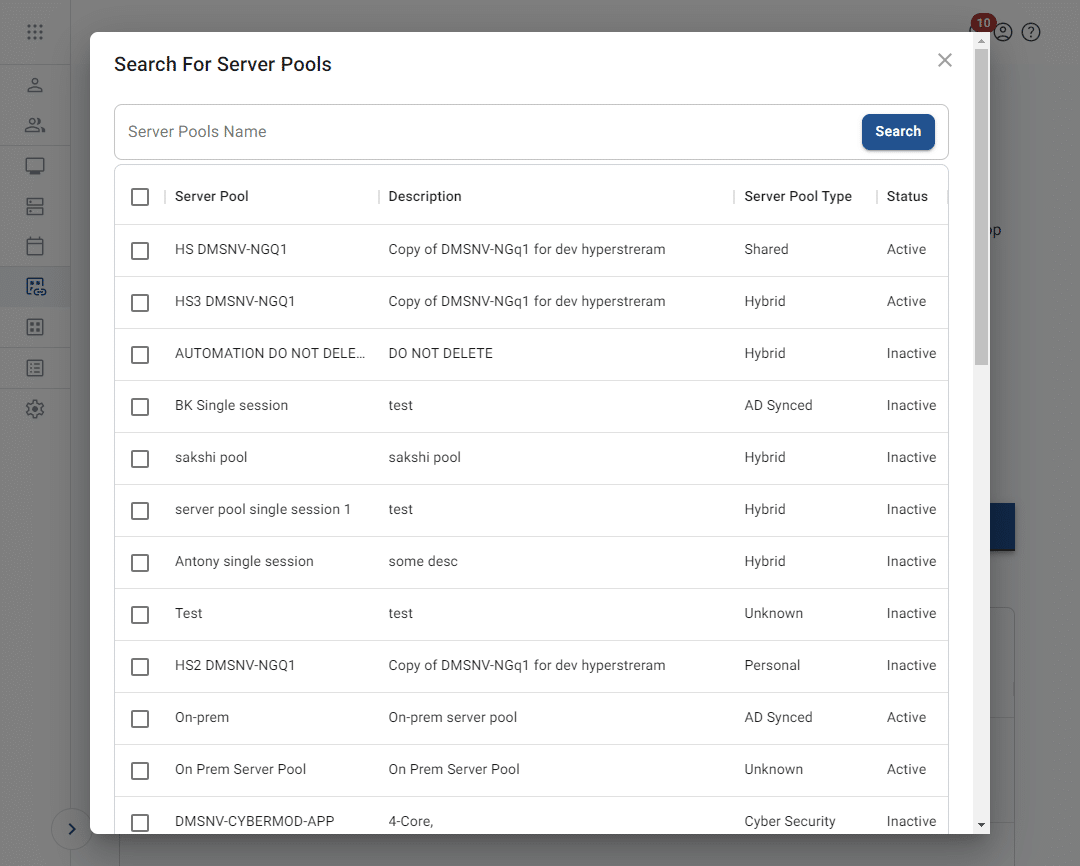
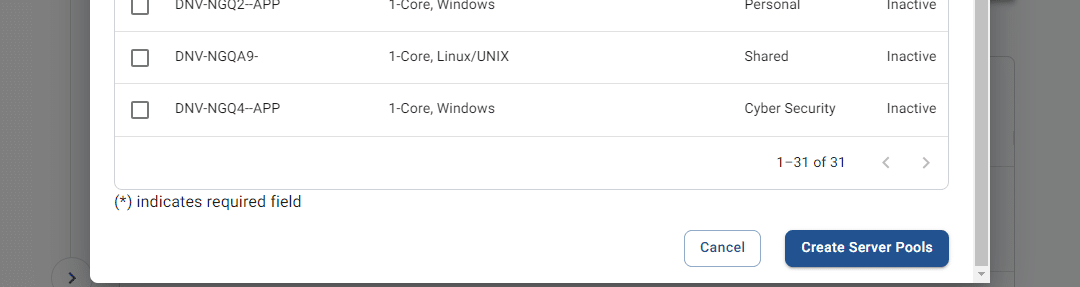
The system will display the Search for server pools pop-up. To make it easier to locate the appropriate server pool, you may search by server pool name.
-
From the list, check one or more checkboxes to select server pools.
-
Click create server pools. The system will close the pop-up.
-
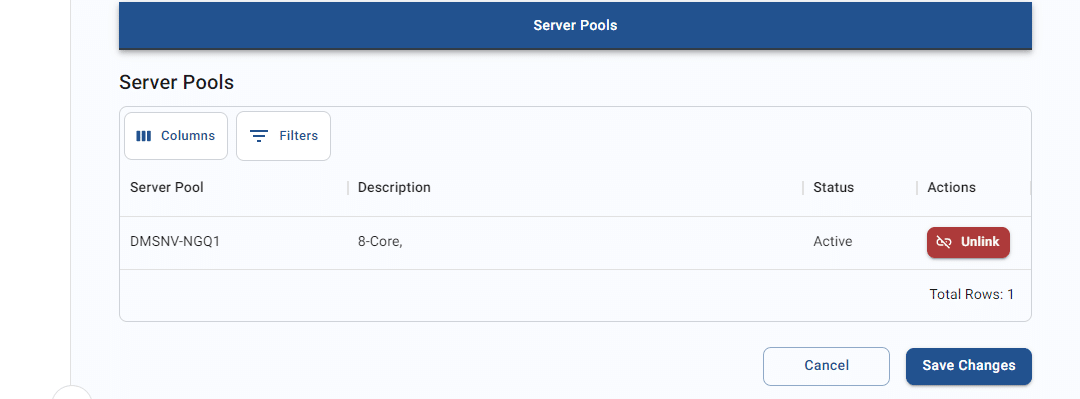
The newly assigned server pools will display in the tab. Click save changes to confirm the server pool assignment.
-
Click unlink to remove any unwanted server pools.
-
The unlinked server pool will no longer be visible in the list. Click save changes to confirm the update.
Migrated from the Apporto Help Center: https://www.apporto.com/help-center/creating-a-desktop-pool