
Use PowerGrader from your LMS to review AI-generated scores and feedback, adjust them, and publish final grades back to the LMS. This page walks through each screen in order.
Launch PowerGrader
-
Log in to your LMS and navigate to the desired course.
-
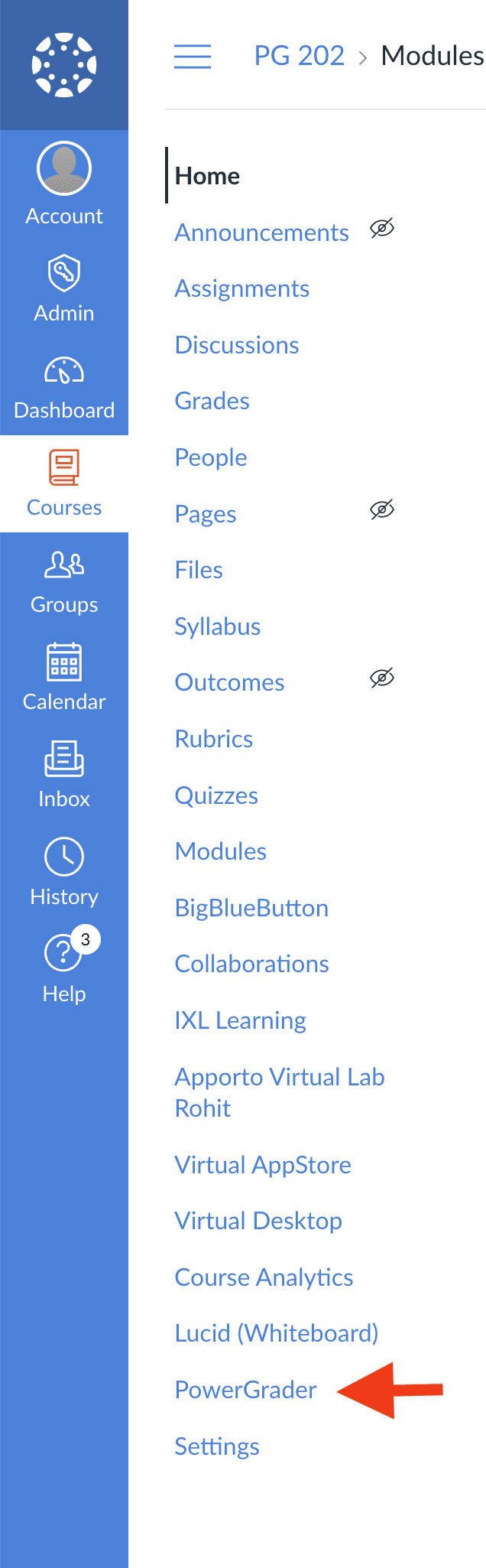
Click PowerGrader in the left navigation menu.
-
PowerGrader opens in a separate browser tab.
View the Assignments List
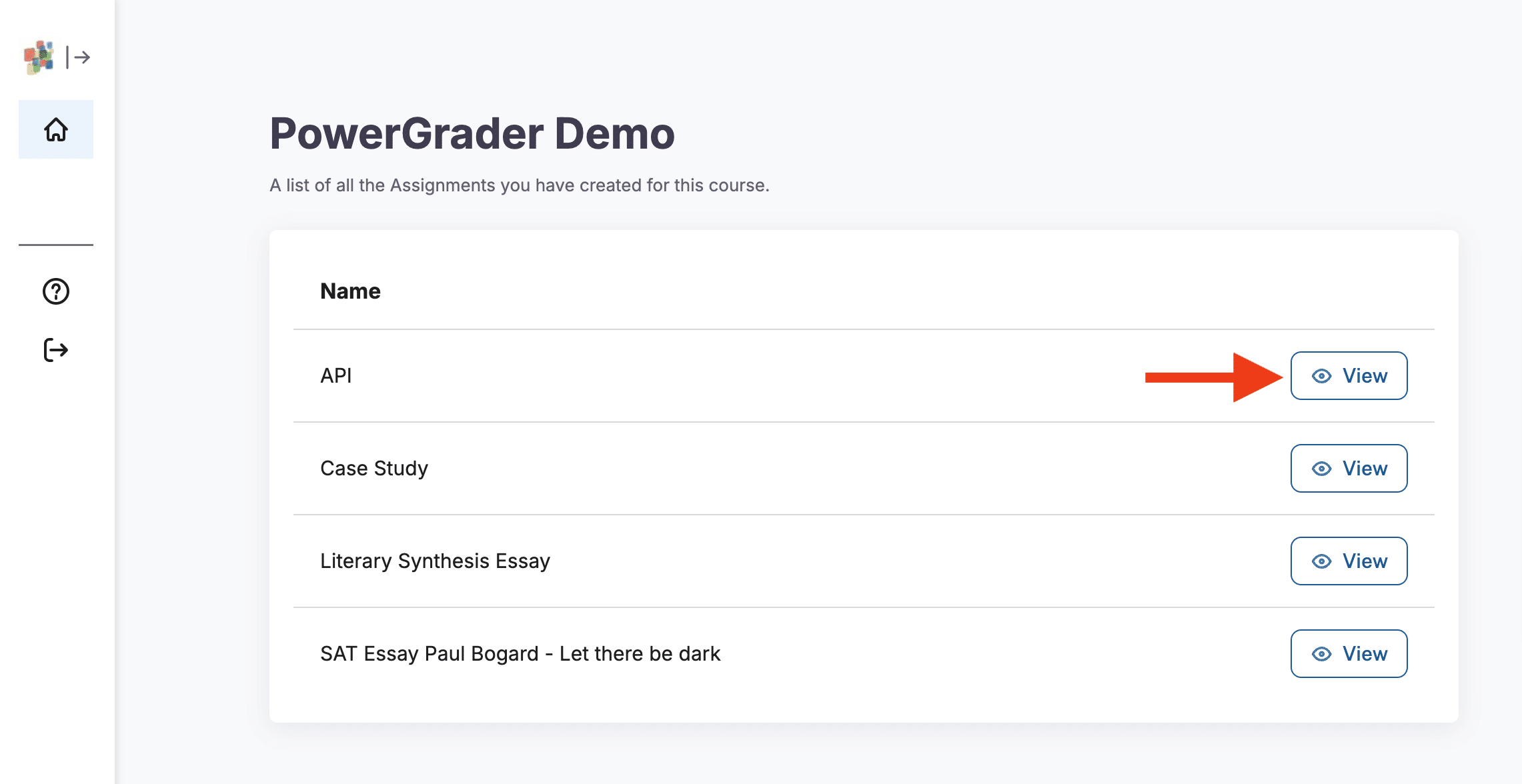
When PowerGrader loads, you see a list of assignments. All assignments compatible with PowerGrader are visible. This includes all text-based assignments (for example, code and text files). It does not include spreadsheets, video, or images yet, although a PDF or text document that contains an image is fine. Quizzes and discussions are filtered out.
-
Locate the assignment you would like to grade.
-
Click View to view submissions for that assignment.
View the Submissions List
The Submissions screen has three sections:
-
Submissions list
-
Assignment instructions
-
Assignment rubric
The Submissions list shows the students who have submitted the completed assignment to the LMS. The “Reviewed and Published” status shows whether the instructor has reviewed the submission and published the final grade back to the LMS.
The assignment Instructions and Rubric mirror those in the LMS and are shown for reference.
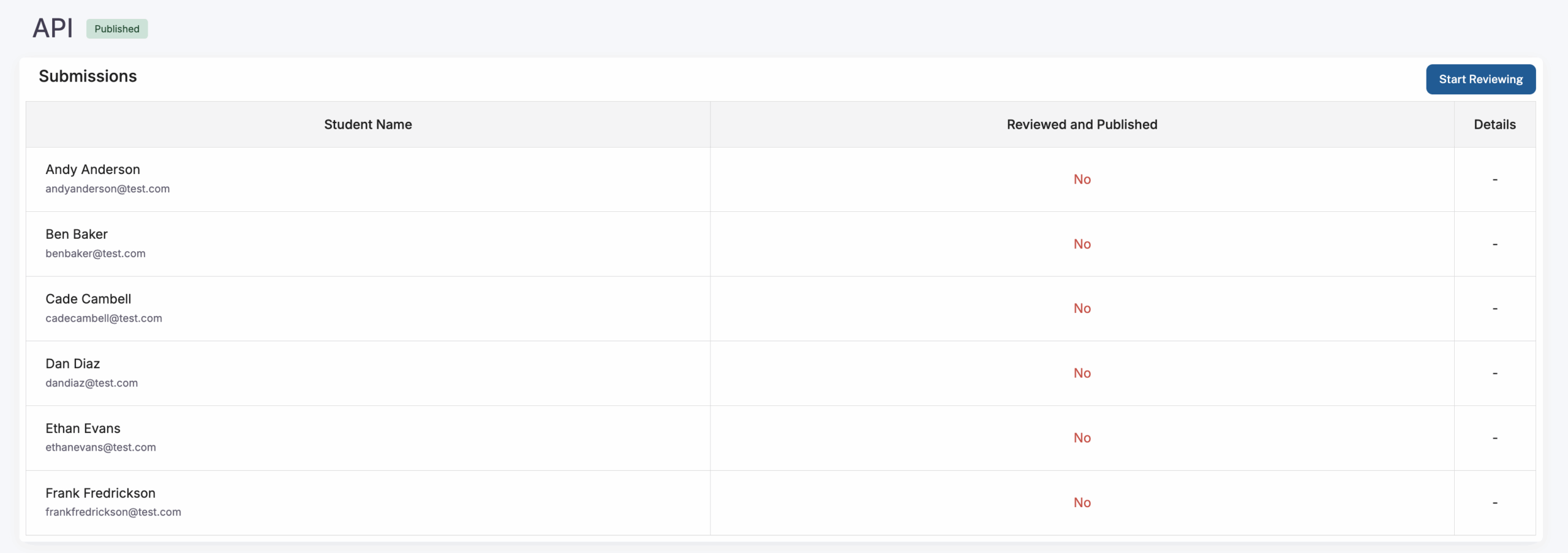
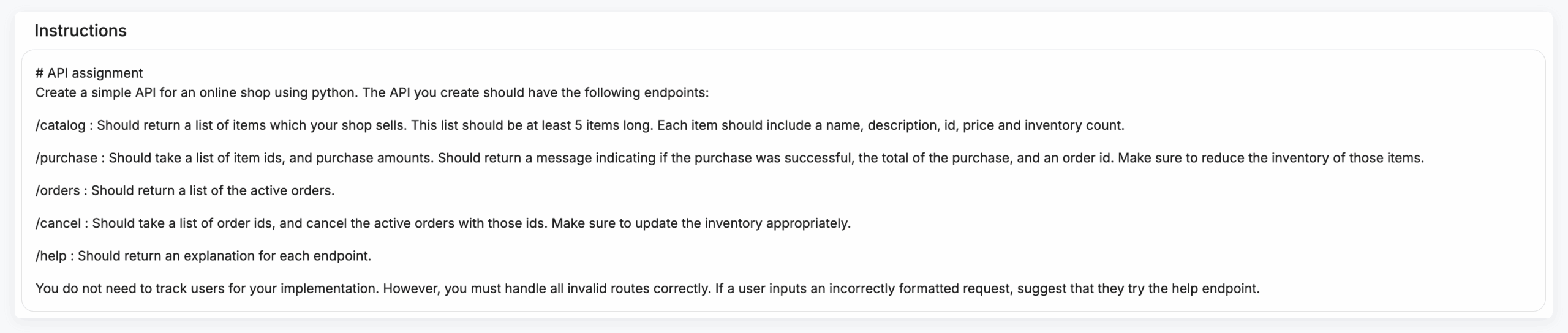
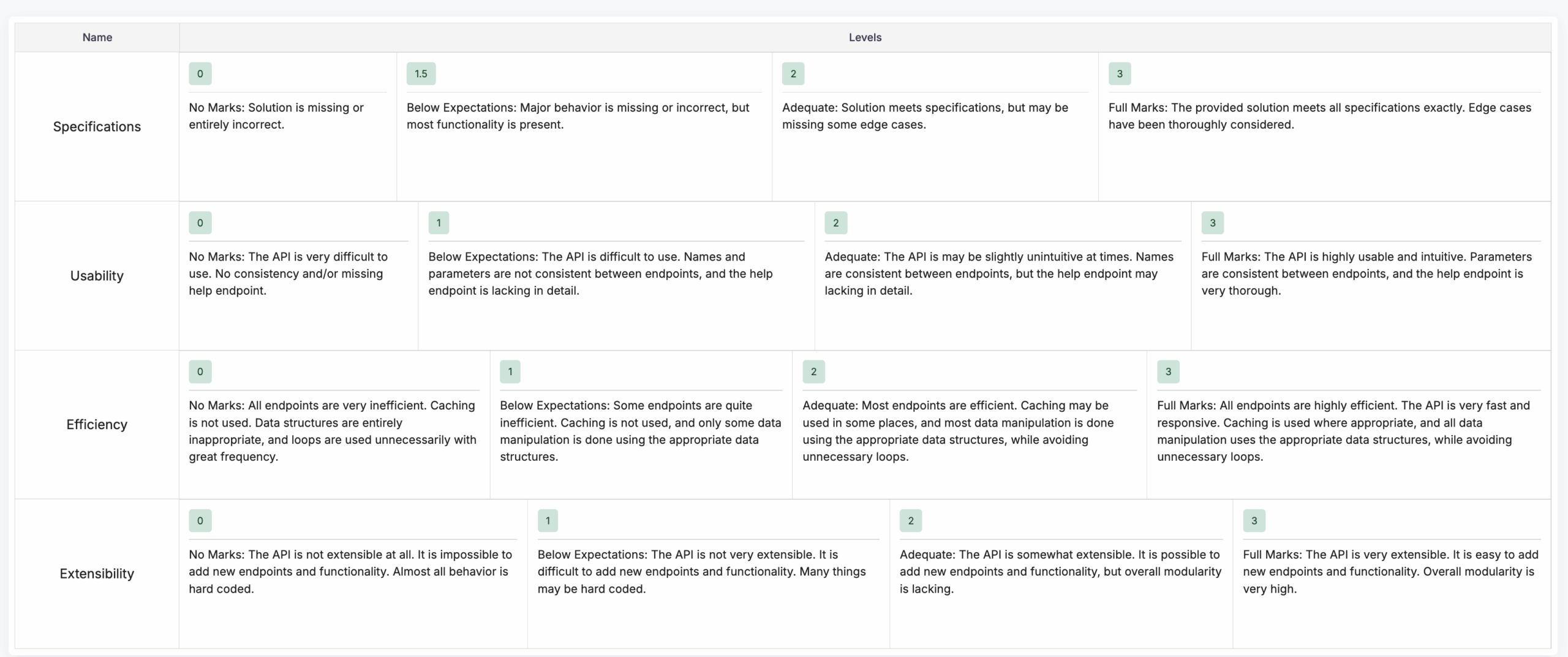
Click the Start Reviewing button in the upper right corner to begin reviewing submissions.
Review Submissions
The first unreviewed submission opens. The student’s homework file is shown on the left. Submission scores and feedback are shown on the right, along with the rubric.
Note: In education, feedback may also be referred to as comments or assessments.
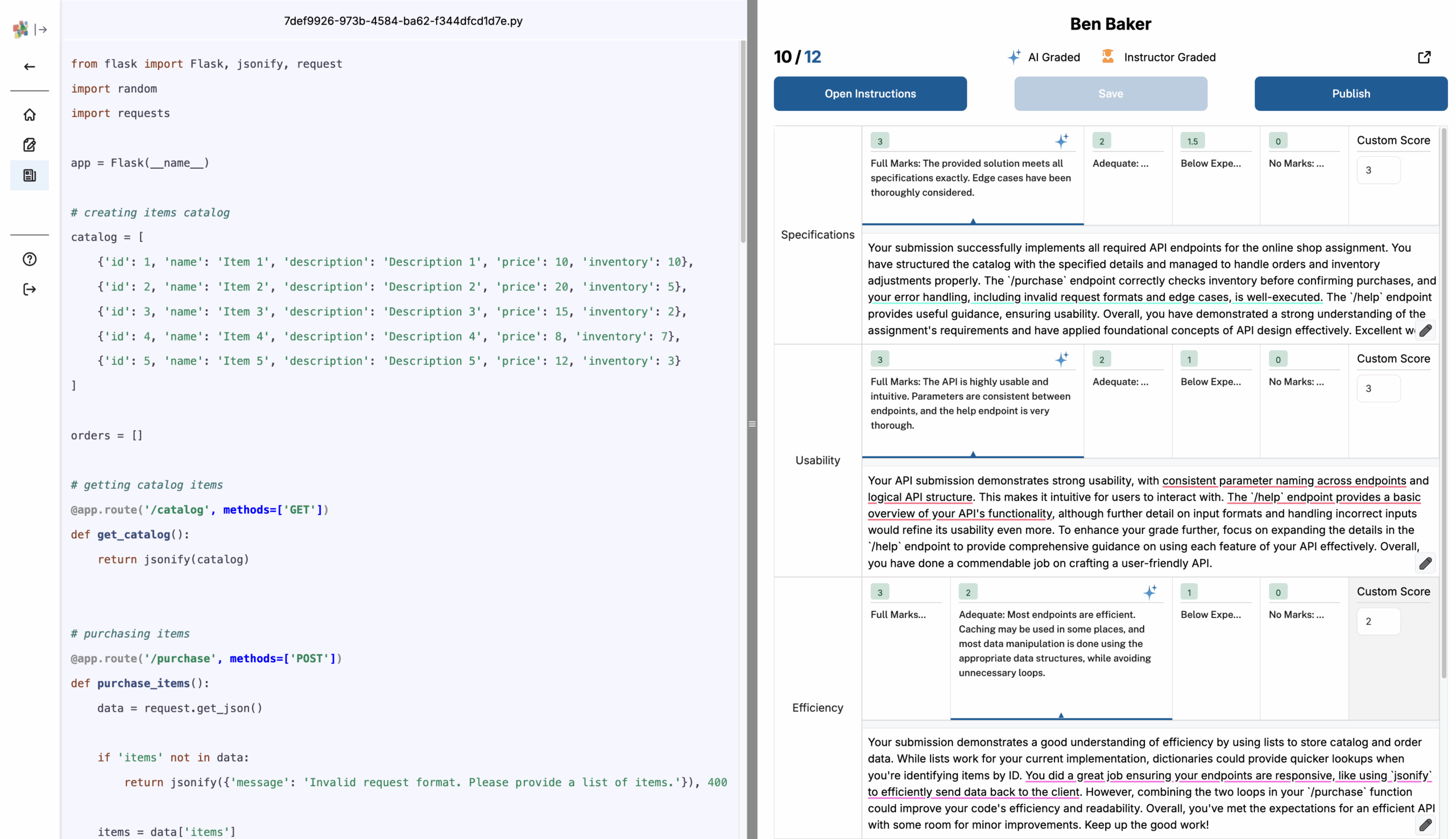
A counter is shown so you can track progress (for example, 10 of 12 submissions).
You can expand the right side (and hide the student’s homework file) by clicking the expand button 
If you need to refer to the assignment instructions, click Open Instructions.
A sparkle symbol shows that the score was generated by AI, while an instructor symbol shows that it was given by the instructor.

AI-generated scores and feedback are provided along with the rubric.
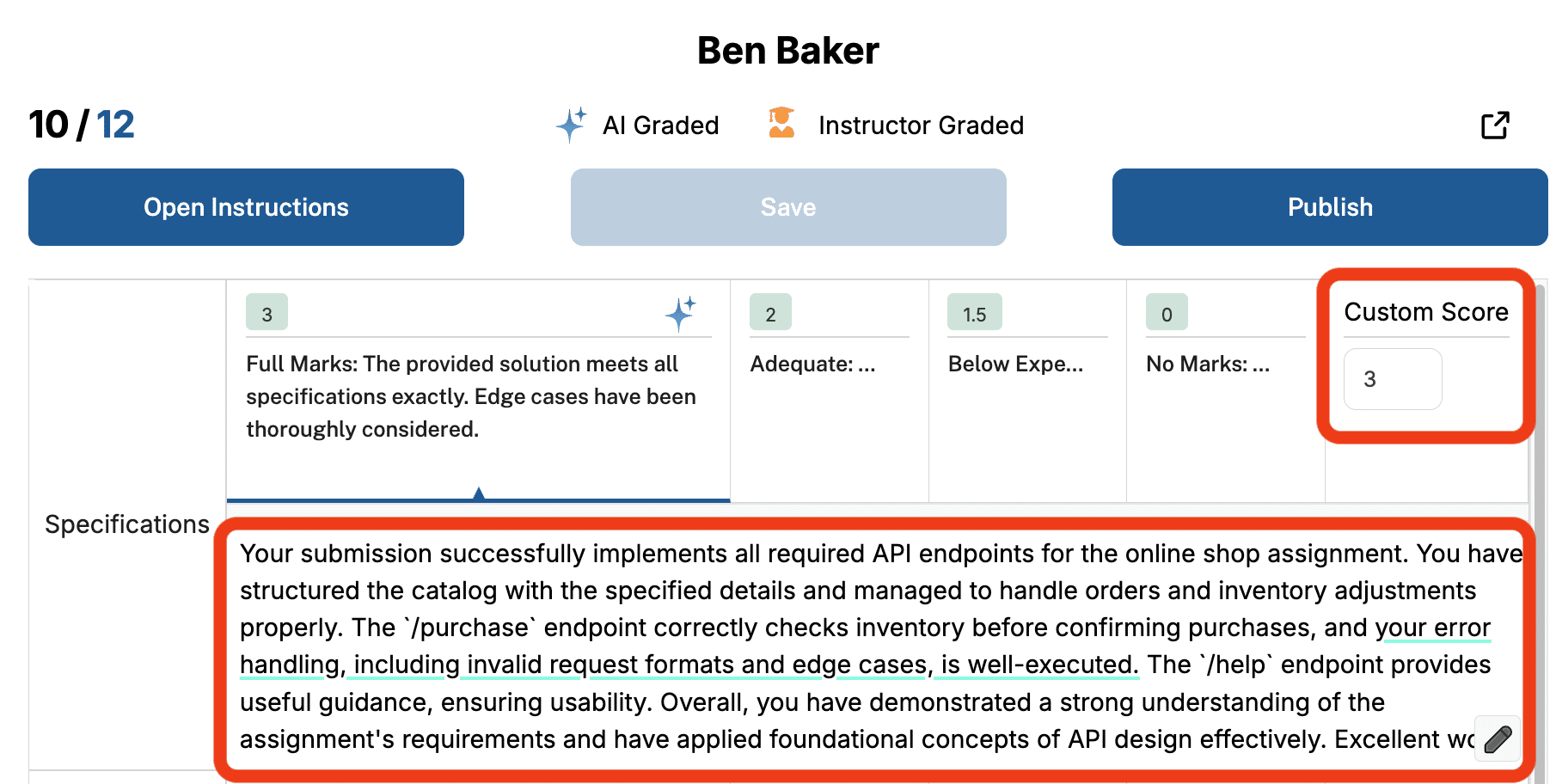
You can edit the score (in the Custom Score text box) and the feedback (with the pencil edit button). PowerGrader learns from your changes and updates the scores and feedback for all other unpublished submissions for this assignment. In other words, PowerGrader learns your grading style, more lenient or harsh, and adapts.
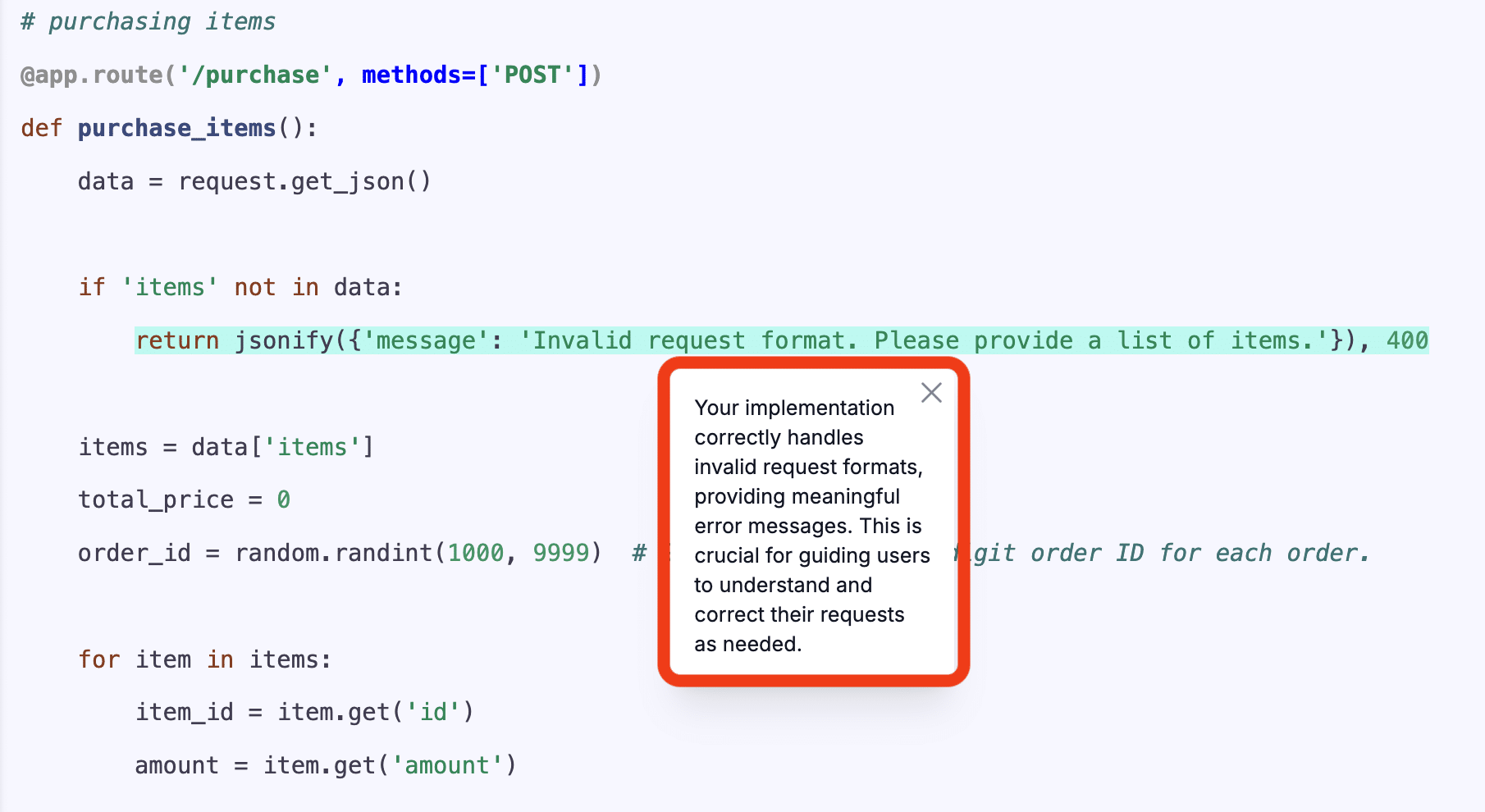
In the feedback, you may see underlined text. Click the underlined text to highlight the relevant section of the submission and see what prompted PowerGrader to give that feedback.
The colour of the underline has no particular meaning (for example, red is not bad and green is not good). The colour is random.
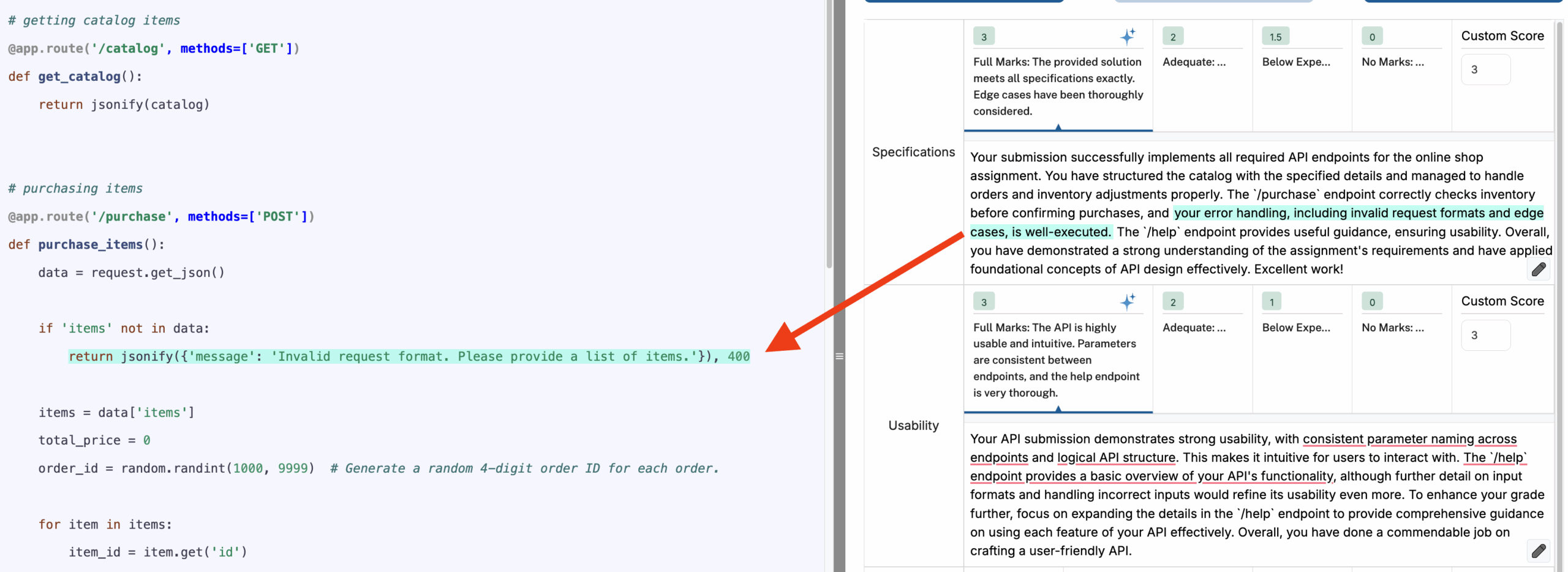
You can also click the highlighted section to see more detail about why PowerGrader gave that feedback.
If you have made edits but have not finished reviewing a submission, click Save to save your changes.
When you have finished reviewing a submission, click Publish to publish the final score back to the LMS.
Multiple instructors (for example, professors and TAs) can be on the PowerGrader account, but only one can grade a submission, and the most recent grade is stored.
Viewing Published Grades in the LMS
-
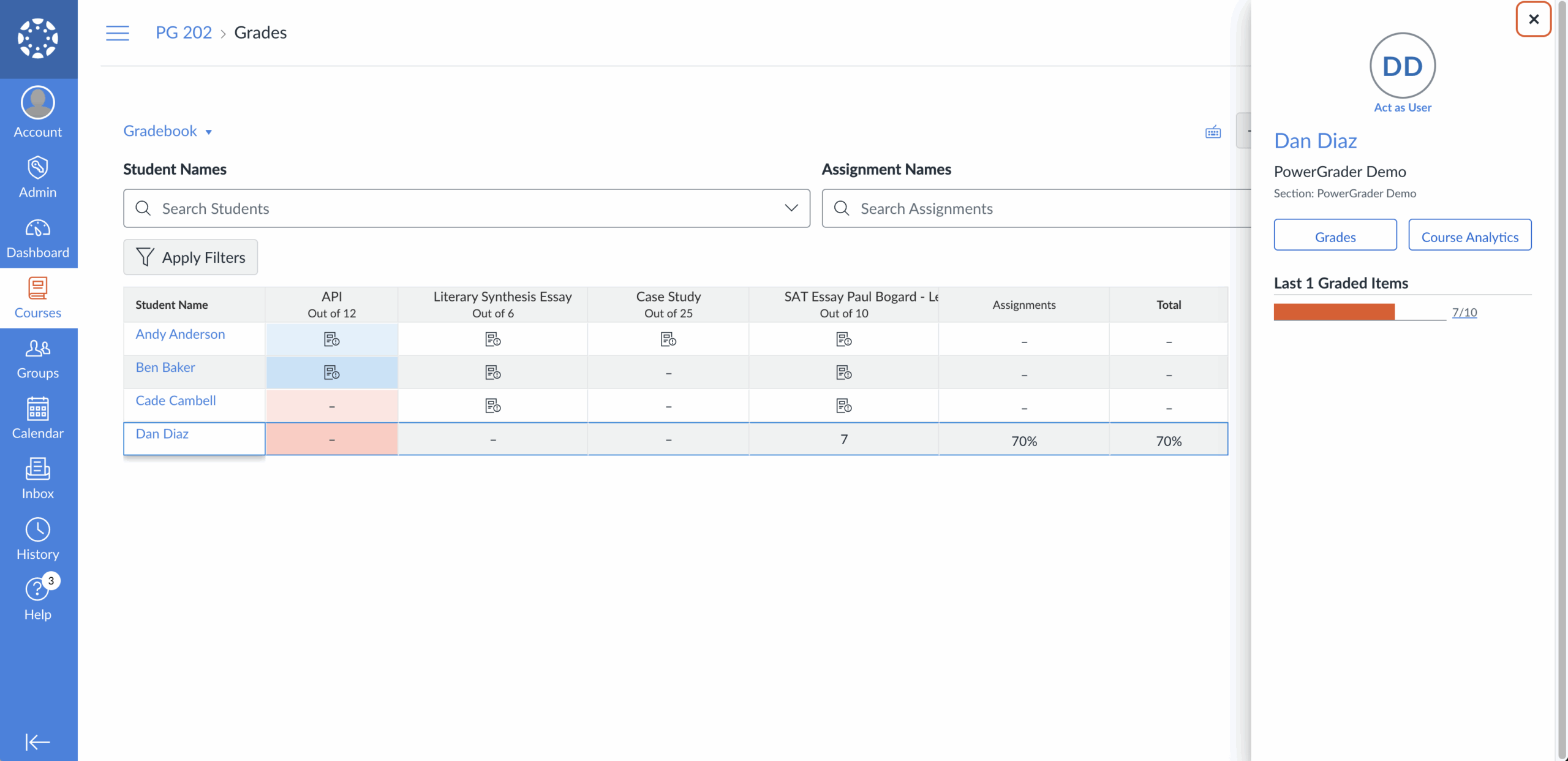
Log in to the LMS (for example, Canvas) and navigate to the course gradebook.
-
Locate the relevant student and assignment, then click the submission to view the published grade (for example, 7/10).